

Elton AI on your phone
Your Obsidian vault from any browser. Type a line on your phone and it lands in a note on your computer. Ask a question and your own assistant answers — from your own notes.
⚡ The short version — TL;DR
- This is not sync. Not a single note is stored on your phone. The phone asks your computer, the computer reads the vault and answers.
- Nothing to install. Open
app.eltonlabs.orgin your phone’s browser and add it to the home screen. From then on it is a normal icon.- Connecting takes half a minute. Update the plugin → switch the Connector on → press Generate → type the code on your phone. Once.
- Do run the indexing. Without it the assistant only matches exact words, and answers on the phone get noticeably worse. Once: plugin → Vault → Search and the web → turn on search by meaning and press Index. It costs pennies — details.
- It can: capture a thought, append a line to today’s daily note, answer from your notes, read a photo of handwritten pages, take voice, and run your own saved tasks.
- Price. The app itself is free. You pay only for the model — the same balance as in the bot and on the site.
- The condition. Your computer has to be on, online, with Obsidian open. Otherwise the message waits in a queue and is handled when you open the vault.
📺 Video walkthrough on YouTube
First time here and half the words are unfamiliar? Start here
All of this rests on three things, stacked one on another. If you already work in Obsidian with the plugin, scroll straight past.
Obsidian is a free notes app. What makes it unusual is that your notes sit on your own disk as ordinary text files rather than in someone else’s cloud: a folder you can open in your file manager. That folder is called a vault. Download it from obsidian.md — Windows, mac, Linux.
Community plugins are add-ons for Obsidian written not by its developers but by other people. They install inside Obsidian itself, from a built-in catalogue, free and with no signup: Settings → Community plugins → Browse. The first time, Obsidian asks you to turn off Restricted mode — that is it asking permission to run someone else’s code.
Elton AI is one of those plugins, and it is mine. It adds an AI assistant to Obsidian that reads your notes, searches them, writes new ones and can answer out loud. Full guide — here. The assistant needs a key to some AI model: a string of characters by which the model knows the request is yours and which account to bill. The key can be mine, or your own from OpenAI or OpenRouter — the plugin works with any.
The app this page is about is the fourth layer on top. It computes nothing itself: it just lets your phone reach the assistant already running on your computer. Hence the order: Obsidian → plugin → key → and only then the phone.
None of it needs an app store, a foreign card or a VPN.
Below — the long version, from zero
Every tap is spelled out: what to switch on where, where the code goes, why the app refuses to sign you in from a browser tab, how payment works and what happens to your notes on the way. If something is already clear, use the contents.
What this is, in plain words
You have Obsidian on your computer — a folder full of notes. And you have the Elton AI plugin — an assistant that can read those notes, search them and create new ones.
There is one problem: all of it lives on the computer. And thoughts do not arrive while you are sitting at it.
The app solves exactly that. You open an icon on your phone, type a line — and it lands in your vault. You ask “what did I leave undone this week” — and you get an answer built from your own notes, not from the internet.
There is not a single note on the phone — and that is precisely why it works.
Nothing to download, nothing to configure, nothing to conflict. The phone only asks and shows the answer.
The answer does not come from "AI in general". It comes from your own assistant, on your own computer, which sees only your notes.
What it is NOT
Worth getting straight now, or everything below will feel odd.
An honest comparison with sync — both columns are true, and each has a price:
| Sync | This app |
|---|---|
| a copy of the vault on your phone | nothing on the phone |
| setup, storage, conflicts | nothing to configure |
| works on a plane | needs the computer switched on |
| the phone shows files | the phone asks and gets an answer |
The plane row is not a slip
Offline, sync wins, and pretending otherwise would be a lie. That is the direct price of keeping nothing on the phone.
How it works inside
Between the phone and the computer sits a relay. It is a postman: it passes messages on and forgets them. It stores no notes and cannot read them.
Everything else follows from this:
- The phone needs no space. There is nothing to download.
- Nothing to configure. No paths, no folders, no sync schedules.
- No file conflicts — because there is no file on the phone.
- Notes are created by your plugin, from your templates, into your folders. Exactly as if you had done it by hand at your desk.
What you need
What you do NOT need
An app store. A developer account. A second key. A separate sign-up. A subscription to the app.
Connecting — six steps
One step at a time, each with a short clip. The clip shows exactly what the text next to it describes.
Step 1. Install or update the plugin
The Connector tab is in version 3.0.0 and newer. Two branches follow — take yours.
You don’t have the plugin yet. It installs from the Obsidian catalogue, free and with no signup:
You have the plugin, but a version older than 3.0.0:
The whole path on video — settings → community plugins → check for updates → update:
The version is shown in the plugin's settings
Open the Elton AI settings — the version is written right at the top. If it says 3.0.0 or higher, skip this step.
If you read this guide earlier
Until 14 September 2026 it said “version 2.2.0 or newer”, and that was wrong: no such version was ever in the Obsidian catalogue — it existed only on my own machine. If you went looking for 2.2.0 and could not find it, there was nothing to find and it was not your mistake. The version you need is 3.0.0, and it is in the catalogue.
Step 2. Switch the Connector on
The Connector is the part of the plugin that listens for your phone. It is off by default, deliberately: it opens your notes to the outside.
The tab and the toggle:
What "only while Obsidian is open here" means
Exactly that. While Obsidian is running on this computer, your phone gets answers. Close it or shut the computer down and messages are not lost — they wait in a queue and are handled when you open the vault again.
Step 3. Create a connection code
The code is the password your phone uses to introduce itself to your computer.
app.eltonlabs.org and the code. That is everything the phone needs.The button, the card with the address and code, and the status line:
The code is a key to your notes
Anyone who has it can write to your vault. Do not show it on streams, in screenshots or in chats. Reset clears the code and disconnects every phone at once — useful if the code leaked somewhere.
Step 4. Add the app to your home screen
This is where most people get stuck. The app will not sign you in from a normal browser tab — and that is not a bug.
app.eltonlabs.org in your phone's browser.The app’s own warning and the icon appearing:
Why signing in from a tab is disabled
The connection code is a key to your notes, and a tab is easy to leave open, to show to someone, or to lose along with an unlocked phone. From an installed app it is fine: it has its own storage and does not sit in the shared tab list.
No store, no developer account
The page installs itself, using the browser. It is called a PWA. It takes a few kilobytes and updates on its own.
Step 5. Type the code — once
The sign-in screen and the first conversation:
You will not need the code again
On connecting, the phone swaps the code for a key of its own. After that you can safely reset the code — the connected phone keeps working, while a new one cannot join without a code.
Step 6. Check it and stay in control
Checking the connection and the device list:
Using it every day
Once connected, this is what it was all for.
Capture a thought
The most common action. It comes to mind — open, type, close.
The line is sent and becomes an entry in the daily note:
Where exactly it lands is decided by your own plugin settings: the inbox, today’s daily note, a separate file from a template. The app invents nothing — it asks your computer to do exactly what it would do on your command at the desk.
Ready-made prompts on ”/”
Nobody types a long question on a phone — that is the very friction we are getting rid of. Hence the slash.
The list of twenty ready-made prompts:
Your own tasks come first
If you have saved your own tasks in the plugin on your computer, they appear in this same list — above the built-in ones. A long brief written once now runs from your phone with a single tap.
A photo of handwritten notes
Something Obsidian Mobile cannot do at all: photograph a page of handwritten notes and it becomes a note.
The photo, the caption and the finished note:
It works in two steps, and that matters:
By voice, on the move
The microphone button is not the phone’s own dictation. The phone records audio, and the model you chose in the plugin transcribes it.
Recording, transcription and the text in the input field:
Why not built-in dictation: it stumbles on names, terms and the titles of your notes — and talking about your own vault is made of exactly those.
The transcript is not sent immediately
It lands in the input field so you can see what came out. Hearing can be wrong, and the notes being edited are real.
Ask your own notes
The reverse task: not to capture, but to recall. And not “find a file” — ask in plain words.
The question and an answer built from the notes:
- Ask to show a note and you get its text, not a summary. Template boilerplate is skipped.
- If several match, it lists the titles first and asks which one to open.
- You can go broader without naming a note: “pull my business ideas out of Areas” — it finds the folder and groups them by meaning.
You do not have to sit through a heavy question
“Sum up my week” takes a while. Lock the screen and put the phone away: the answer finishes on your computer, and a notification arrives when it is ready. The app asks for notification permission on first launch.
A quick-capture button on your phone
Opening the app for a single line is the very friction we are getting rid of. So a thought can be sent without opening the app at all: one tap on the lock screen, a small input box, done.
One caveat about this button
It cannot encrypt — Shortcuts simply can’t. A note sent from the button goes through the server as plain text. Fine for a shopping list; for anything private, write it in the app, where it is encrypted.
There will be no widget for the app itself — here is why
Widgets on iPhone (home screen and lock screen alike) can only be built by code inside a native App Store app. A web app has no such access at all — that is a system limit, not an app limit. Android works the same way.
A button that does exactly the one thing you need, however, is entirely possible.
How it works
The plugin issues a separate key — not the connection code. It can do exactly one thing: create a note.
This is not a “denied by a permission check”. A message from that key is diverted before it ever reaches the assistant: there is no search, no reading and no editing on that path at all. Private folders apply too — a note will not be created inside them.
Step 1. Create the key in the plugin
How the key is created in the plugin:
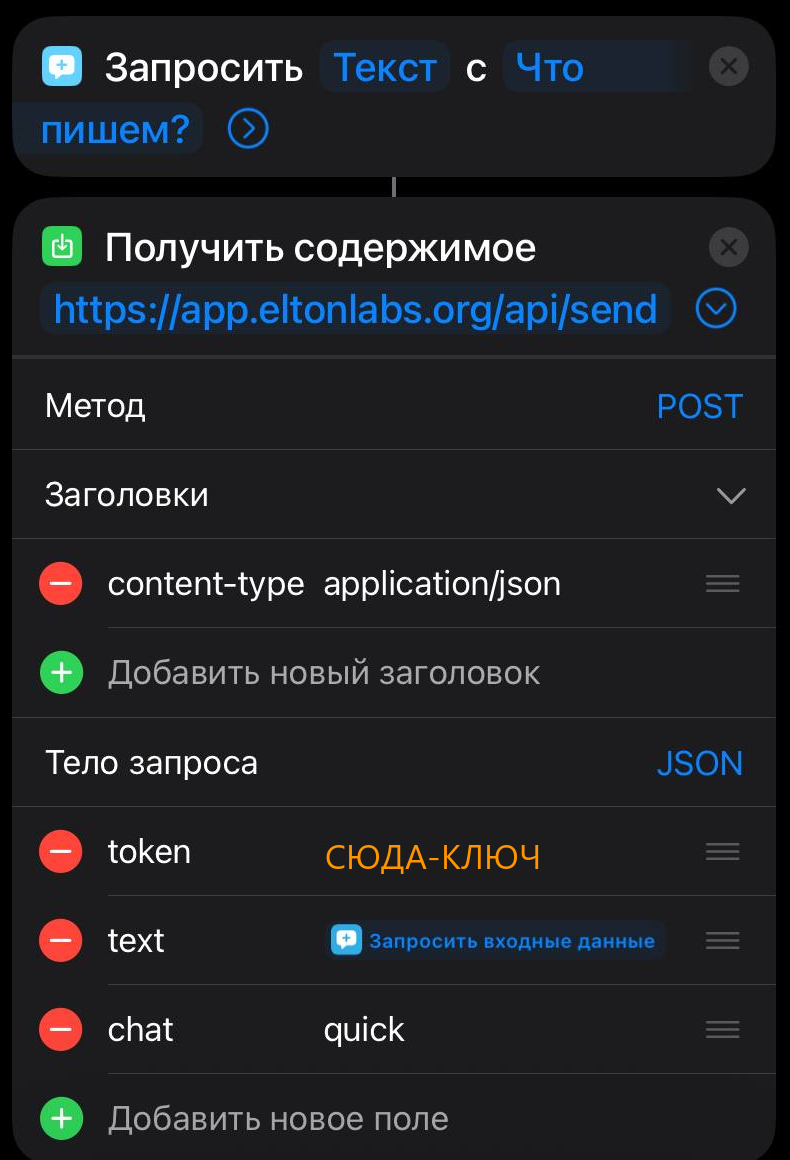
Step 2. iPhone — build the button, two minutes
Do not mix them up: the connection code is not the quick-capture key
They are two different values living on the same tab — everyone trips over this, myself included.
- The connection code is short and always on display in the Connection section. It is for signing in to the app from a browser. It does not go in the button: the server refuses it and answers
this is the connection code, not a device key.- The quick-capture key is long and shown once, after you press “Create the key” in the Quick capture section. That is the only one the button accepts.
If the button stays silent and no note appears, the code almost certainly went in instead of the key.
Getting a long key onto the phone
Copy it in the plugin with the Copy button and send it to yourself — Telegram saved messages, a note, anywhere. On the phone it is a long press and Paste. No typing.
A ready-made file is something the iPhone will refuse — and that is not your fault
Since iOS 15 Apple has blocked installing shortcuts from files: only iCloud links it has signed itself can be installed. Hence the error “Import of unsigned shortcuts is not supported”. Nobody can sign such a file from outside, and no setting gets around it.
So the button is built by hand. Three actions, step by step below — it works the first time.
What is it?, input type — Text.https://app.eltonlabs.org/api/send. Tap Show More and fill in:• Method —
POST• Headers —
content-type : application/json• Request Body — JSON, three Text fields:
token → the output of the Text action from step 2text → "Provided Input" from step 3chat → quickOnce it is built, share it with yourself
In Shortcuts open it → Share → Copy iCloud Link. A link like that installs in one tap — handy for moving it to a second phone or an iPad without building it again.
Step 2. Android
Simpler here — half of it already works with no button at all.
https://app.eltonlabs.org/api/send, JSON body with token, text and chat. Make the text a "ask on execution" variable and the widget will prompt you for the thought.And this is what it looks like in practice: one tap from the lock screen and the note is already in the vault.
The honest price of this button
A message from the button travels without end-to-end encryption — as plain text through the relay. There is no way around it: Shortcuts and widgets cannot derive a shared secret, that needs a browser with crypto.
Which is exactly why the key is cut down to a single action: even if it leaks, a stranger can only dump notes into your inbox — not read your vault. Fine for “buy milk” and “idea for a video”. For a diary, write from the app itself, where encryption is full.
Payment: what for and how
The app itself is free. So is the plugin. You pay only for the AI — and it is not a subscription but a balance: what you spend is what comes off.
No key yet? Start with the bot — the free trial lives there too
An Elton AI key is handed out by the Telegram bot @elton_ai_obsidian_bot — open it, press Start, get a key. The same bot tops the balance up.
Newcomers have a promo code, Gift: it gives you credits to try the thing and decide, without putting anything in. Type it in the bot as a word — or open this link and the code applies itself.
The key need not be mine: your own from OpenAI or OpenRouter works, the plugin takes any. But without some key neither the assistant nor the connector runs.
The balance, the amounts and the payment step:
Why payment takes two taps, not one
The app first asks your computer for the payment link, and that takes a second or so. Opening it automatically makes the phone’s browser treat it as a pop-up and silently block it. So a button appears first, and you make the jump yourself.
If you see a dash instead of a balance
- “The plugin uses another provider” — that provider keeps its own balance and the app cannot see it. Normal if you are on OpenRouter, OpenAI or a local model.
- “The key has no email attached” — attach one at
base.eltonlabs.org; without it there is nothing to tie the payment to.- “Your computer did not answer” — Obsidian has to be running: the balance is asked through it too.
Security and privacy
The first question about things like this: does the relay read my messages? No — and that is not a promise, it is how it is built.
End-to-end encryption
The phone and the computer exchange public keys: those are fine to see, that is what public means. The shared secret is worked out by each side on its own and is never sent over the network.
Private folders still apply
The important part: what the assistant cannot see on the computer, it will not see from the phone either. Diary, finances, health — if you closed those folders in the plugin settings, the phone will not open them. The permissions are the same; there is no separate “mobile access”.
Worth knowing
Why it is not open source — and what is open anyway
It is asked often, so here is the straight answer.
The plugin is open, all of it. Everything that runs inside your Obsidian is
on GitHub: github.com/swayinfo/elton-ai. Not “part of it”, not “the
core” — every line in src/, from which each release’s main.js is built, and
built not on my desk but by the repository’s own workflow, with build provenance
attested. Read it, compare it with what you installed, build it yourself, and
confirm that what leaves your machine is exactly what the table above says.
Only the relay is closed — the postman through which the phone reaches the computer. Not out of coyness: publishing the relay’s code would help almost nobody, because running your own needs a server with a public address, a certificate and an open port. Asking that of someone who just wants to write a line from the bus is not serious. Running the relay is a service, a postman’s work, and it is free: you pay only for the model, and not necessarily to me — any provider you like will do.
What the postman does is known exactly: it carries ciphertext it cannot read, forgets a message after three days, and stores no notes at all.
And if you would rather depend on nobody — the plugin is fully usable without the relay. The panel inside Obsidian, the voice, the tasks and a local model in Ollama need no network at all: switch the connector off and not one request leaves your machine.
Where it is worse — honestly
1. The computer has to be on
Online and with Obsidian open. It is the one answering. The laptop sleeps, the internet drops, Obsidian is closed — no answer. The message is not lost, it queues. But at the moment you asked, there is no answer. If you switch the computer off when you leave the house, weigh that up.
2. Answers take seconds, not an instant
A model writes them. Opening a note in Obsidian Mobile is faster. A direct channel to the files — so that “show me the note” arrives in a second and without a model at all — is already in the works.
3. It is not an editor
Editing long text from a phone is awkward here, and the app does not try. It is about capturing and retrieving, not about rewriting a paragraph.
FAQ
Do I need to install anything from the App Store or Google Play?
No. The app opens at
app.eltonlabs.organd is added to the home screen by the browser itself. No store, no developer account.
Why won't the app sign me in from a browser tab?
By design. The connection code is a key to your notes, and a tab is easy to leave open or show to someone. Add the app to your home screen and open it from the icon — from there sign-in is allowed.
Are my notes stored on the relay?
No. The relay has no notes at all: it passes messages on and forgets them after three days, and it only ever sees ciphertext. Your notes stay where they were — on your computer.
Can I connect several phones?
Yes. Each device types the code once and gets its own key. The phone cannot read the tablet’s messages. The full device list lives in the plugin, and any of them drops with one button.
What happens if the computer is off?
The message is not lost — it queues. You can capture things in bed at night with the computer off: open Obsidian in the morning and everything has been handled.
The plugin says "The server is unreachable: 403". What is that?
Most often — the AI key is not filled in. The wording is poor and I will fix it: 403 does not mean “no server”, it means “the server answered and refused”. A connection code is claimed against a working key, so without a key it stays unclaimed and the relay will not accept it. Open the Connection tab, fill the key in, and press Check the connection again.
The second cause of the same message: you generated a new code while the phone still holds the old one. Then enter the new code in the app.
Does it work with a local model?
Yes, if it runs on the same computer. The app does not talk to the model directly — it talks to the plugin, and the plugin goes to whichever model you pointed it at.
What if I lose my phone?
Open the Connector tab on your computer and press Disconnect next to that device. If you are not sure which one it is, press Reset on the code: everything drops, and you reconnect only your own.
How is this better than the Telegram bot?
The bot still works and is not going anywhere, but it has a ceiling: the conversation is mixed in with work chats, Telegram cannot draw proper tables or nested lists, there are no ready-made prompts, and you cannot send a photo of your notes in a way that files it. The bot is for jotting a line. The app is for everything else.
What next
- If you have not installed the plugin yet, start with the full Elton AI guide: installation, settings, tasks, the bot and the key.
- Want a vault where all of this is already set up — there is a vault template.