I spend most of my life at the computer: I work, rest and study here. And it’s exactly here that I finally started reading books properly. With the help of AI I built myself a reader plugin right inside Obsidian — and now I spend more time with books than ever.
A book opens in the very place where my library of read books lives. I highlight thoughts, turn them into notes with one button, see my progress and keep a daily reading-time goal. And I ask AI questions right as I read.
Let me be honest up front
This is not my only way of reading. I love and read paper books too. The computer reader is just one more tool for a specific job: read and take notes in one place at the same time.
In this article I’ll show how it all works and how to install the plugin yourself.
✨ What's new in version 2.0
- 📗 FB2 format — it now reads EPUB, FB2 and PDF (legacy windows-1251 FB2 files are detected automatically).
- 🌍 Bilingual interface — Russian or English, switchable in settings (Russian by default).
- 🔢 Jump to a page — tap the page counter at the bottom → type a number and land on that page instantly.
- 🌐 Translate a selection (optional, off by default) — shows the selected fragment translated next to the original, no API key; you can save the translation into a note.
- ☁️ Flexible syncing — progress travels via any method: Obsidian Sync, self-hosted LiveSync, iCloud, Google Drive, Remotely Save. A “Sync method” setting handles clouds that update with a delay.
- 🗂️ Export a single highlight — right-click (or ⋯) a quote in the panel → send just that one into a separate note or the book note.
- 🔒 Fully offline — no telemetry, no accounts; the only thing that uses the network is the optional translation.
How to change the plugin's interface language
The plugin is in Russian by default. To switch to English (or back), go to Settings → Book Reader → “Interface language” and pick your language. To be safe, restart Obsidian — then the new language applies everywhere.
Why read on a computer at all
Why read in Obsidian if there’s paper or a phone? One word — friction.
When I read a paper book, a valuable thought stays in the book. To save it, I have to grab my phone, open notes, retype it, and then find it again a month later. By the time you’ve done all that, you don’t even feel like reading anymore.
The book is open in the same app where my whole knowledge system lives. Highlight → press → a ready note. And AI is right there to ask about anything unclear.
How to install the plugin
The plugin is now in the official Obsidian catalogue
Two clicks to install: Settings → Community plugins → Browse → find Book Reader → Install → Enable. Nothing to download by hand.
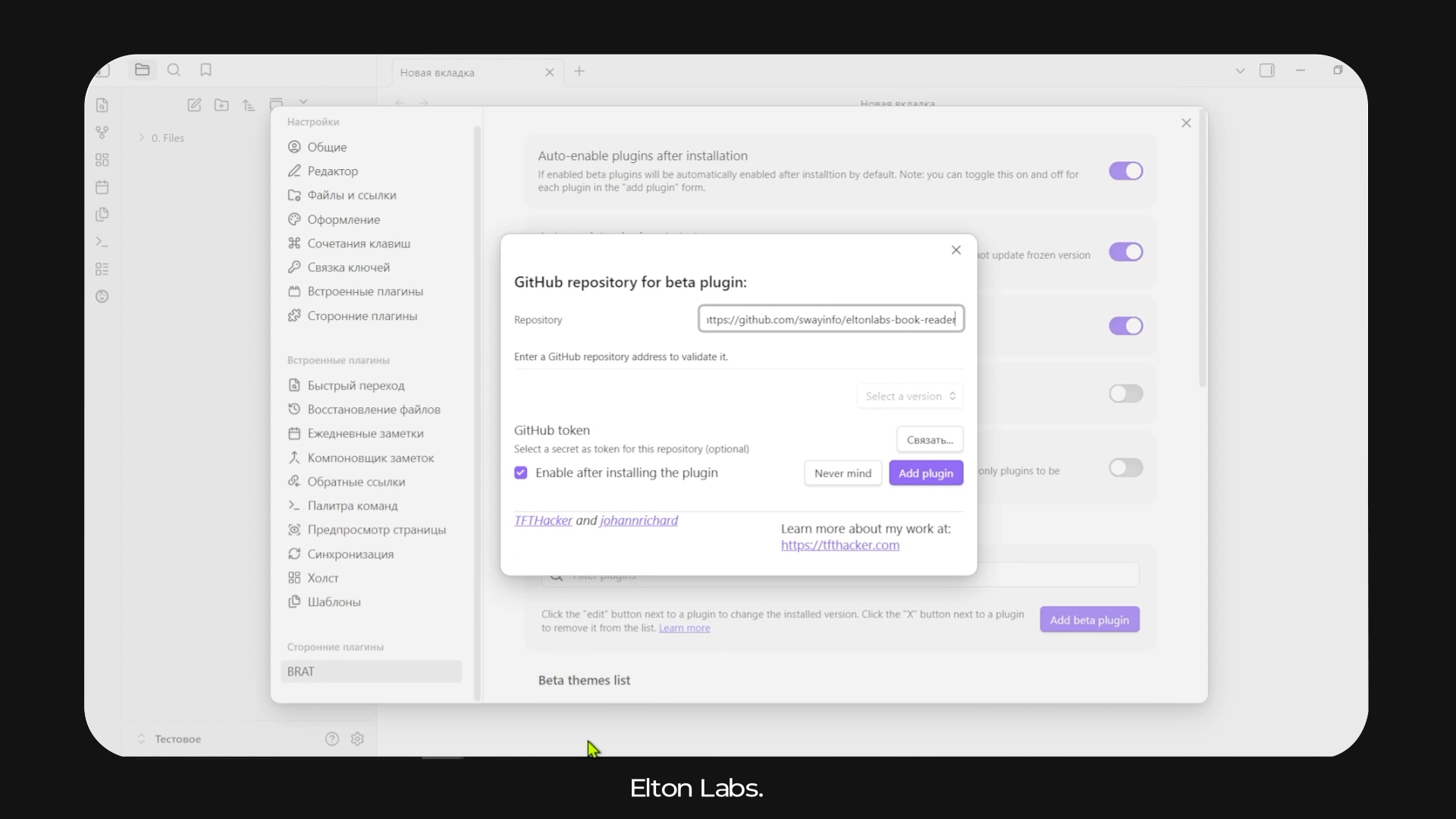
Below is the BRAT route (the one shown in the video). It still works and is handy if you want beta updates before the catalogue: BRAT installs and auto-updates plugins straight from GitHub.
Plugin link
Repository:
swayinfo/elton-reader(or the full URLhttps://github.com/swayinfo/elton-reader). The link will also be in the video description.
The big plus: when I release an update, BRAT pulls it in automatically the next time you launch Obsidian. Want it right away — command palette → BRAT: Check for updates to all beta plugins.
If you install manually (without BRAT)
Download four files from the GitHub release —
main.js,styles.css,manifest.jsonandpdf.worker.js(the last one is needed to read PDFs offline) — and put them in<your-vault>/.obsidian/plugins/elton-reader-books/. Then restart Obsidian and enable the plugin in the community list.
On the phone the plugin is installed separately
Because of its size (a full reading engine inside), the plugin may not sync across devices via Obsidian Sync — there’s a file-size limit there. So on your phone you need to do the same thing as on the computer: install BRAT and add the plugin via the same link. Your reading progress and highlights, however, do sync fine — they’re small.
Where to put your books
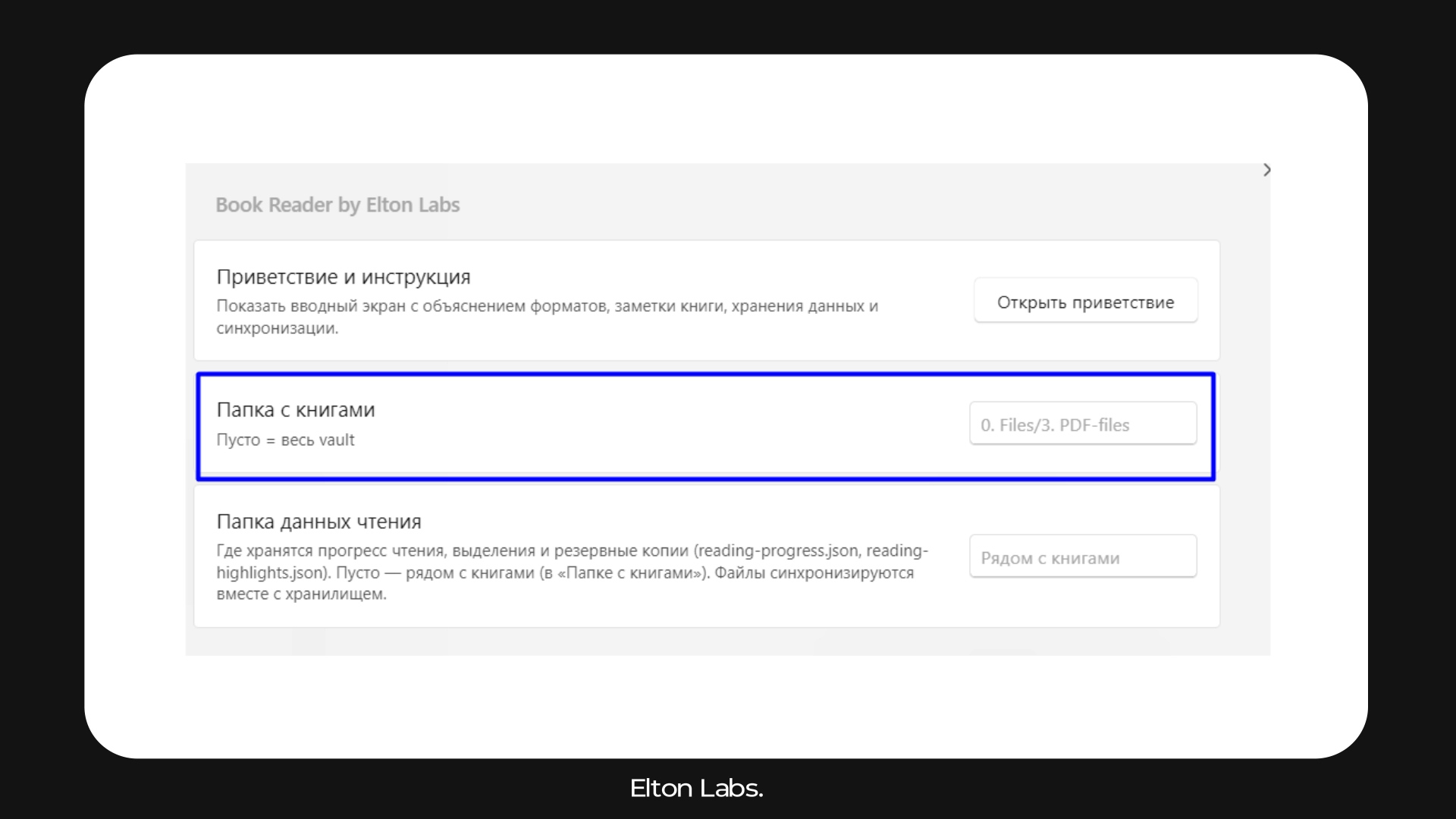
By default the plugin looks in a dedicated books folder inside your vault (mine is a folder with PDFs in 0. Files). The plugin accepts PDF, EPUB and FB2 — the two most popular book formats.
The logic is simple: drop a book file into that folder — and it instantly shows up in the library. You can point it at any folder of your own — in the plugin settings, the “Books folder” field.
The library and reading itself
Open the plugin (the 📖 icon or the “Open library” command) — and you’re met not by a list of files, but by a beautiful visual library with covers, like a bookshelf. Each book has a cover, a title and a reading progress in percent. There’s a search by title at the top.
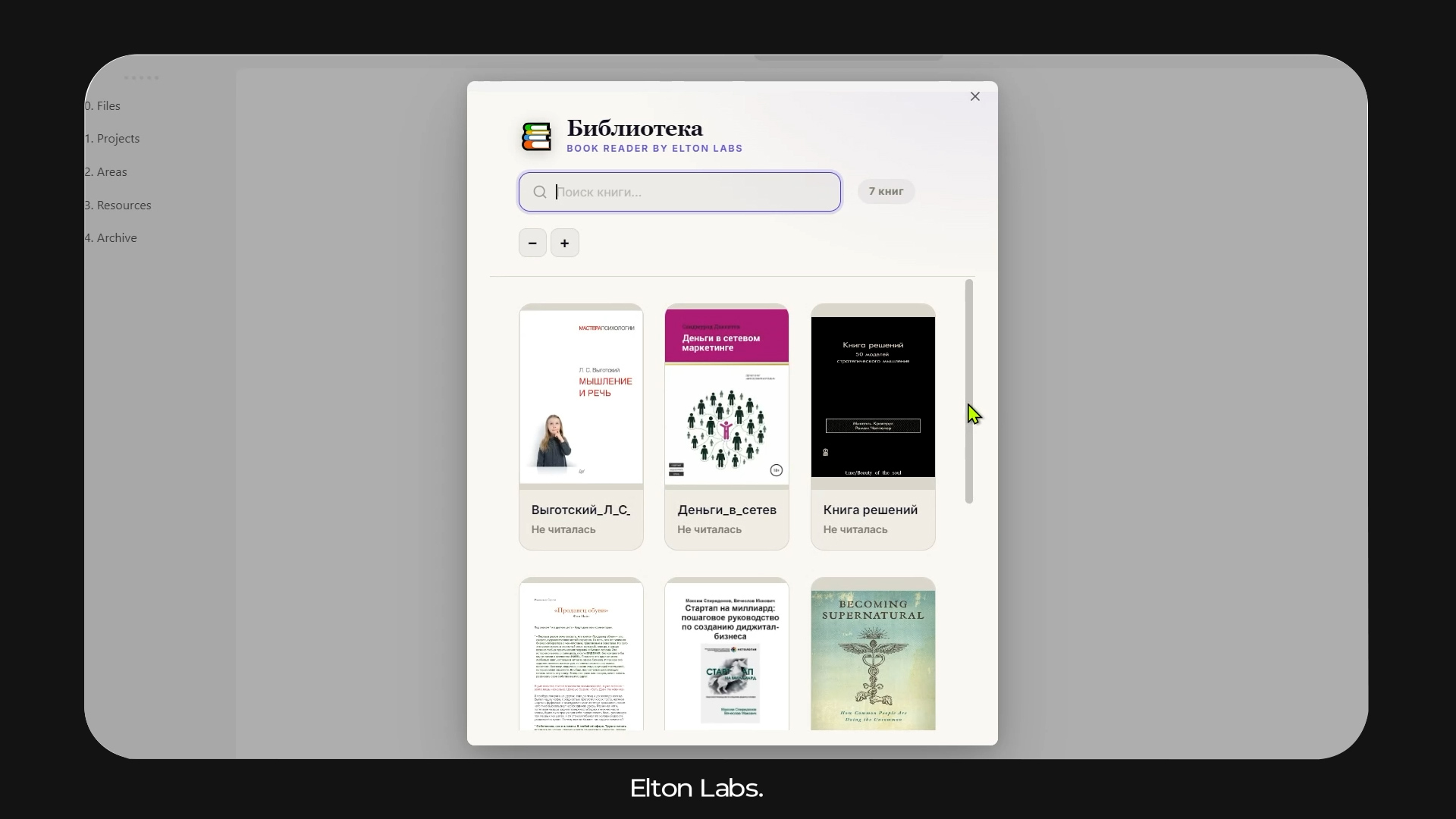
A short live demo — the library, reading and highlights:
Tap a book — the first time it briefly prepares for Obsidian, after that it opens page by page with smooth page turns. What you can adjust right while reading:
The three themes look like this:
The plugin works on both computer and phone: on a phone the book opens full-screen, you turn pages by swiping right, and you highlight text with a long press.
💜 Part of a ready-made system
The reader lives inside my Obsidian template — alongside a books library, projects, daily notes and AI agents. Want it all set up and connected at once — grab the ready-made template.
Progress and syncing
The most important thing — the plugin saves reading progress right into your vault (a reading-progress.json file next to the books). If your vault syncs across devices — the progress travels with it.
I read on the computer during the day, open the same book on my phone in the evening — and it opens exactly at the paragraph where I stopped (the spot is briefly highlighted). You can also drop a “stopped here” bookmark: highlight text → the bookmark icon 🔖 → then jump back here in one move.
Where the data is stored
Progress and highlights live in the files
reading-progress.jsonandreading-highlights.json. By default — next to the books; you can override the folder with the “Reading data folder” setting. Precisely because these are ordinary files in your vault, everything syncs across devices.
Highlights and notes — the main thing
Any thought can be highlighted — in 4 colours. I mark different types of thought with different colours:
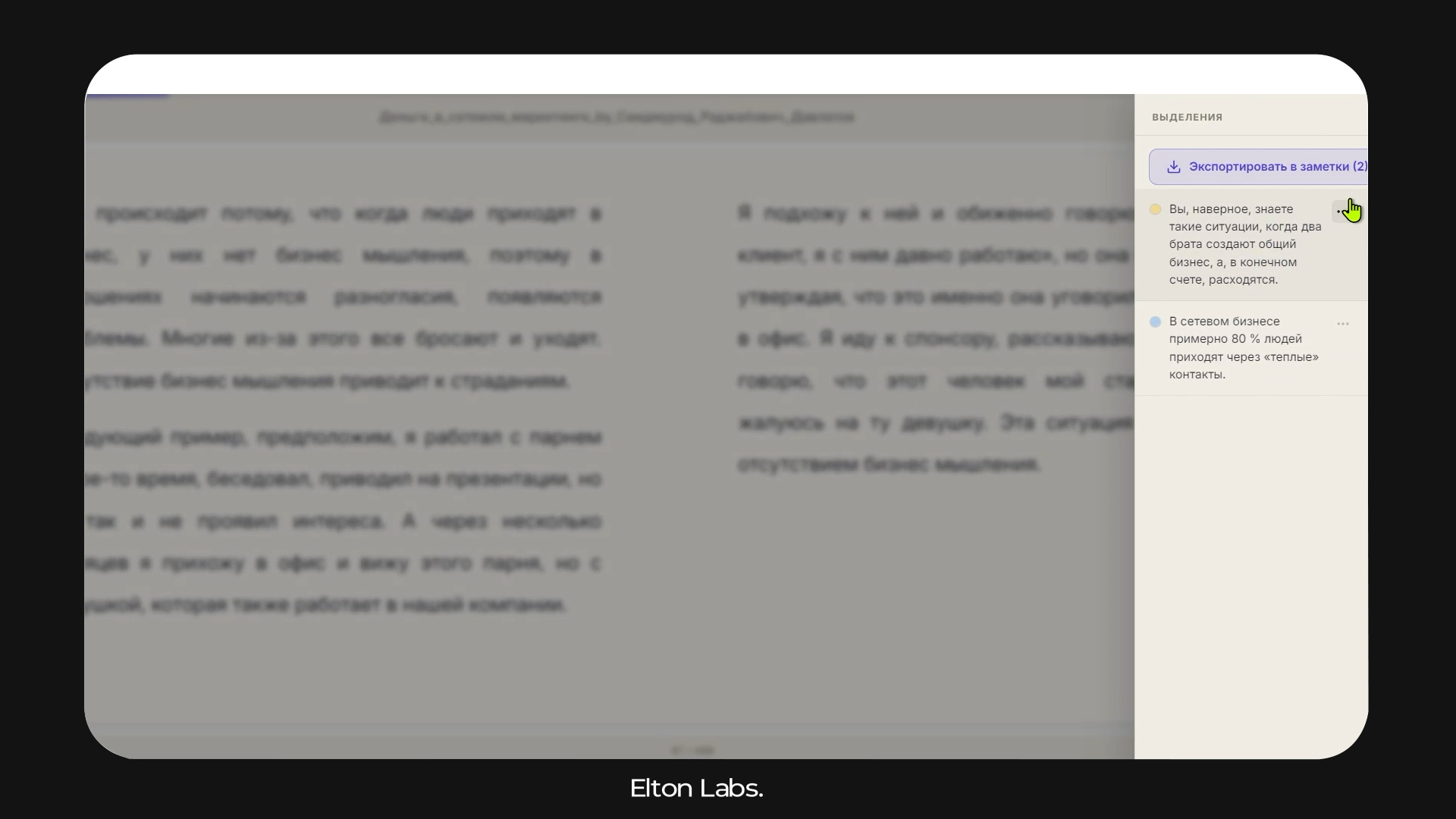
A highlight can be copied 📋, recoloured or removed. All highlights from a book are gathered in a separate panel and tied to that specific book.
A summary in one button
The book file (PDF/EPUB) is linked to a regular Obsidian note — the book’s card. In the settings you can link a book to a specific note, and then the “Export highlights” command dumps all the quotes into that note as a tidy list.
The result: you read a book, press a button — and you have a neat note with all the key thoughts to come back to. In essence you never lose what you’ve read. The highlight colour is preserved too — the quote is wrapped in a coloured <mark> and shows right in the note (you can turn this off with a toggle).
There’s a second scenario too — create a separate note straight from a highlighted fragment: you like a thought → press → an atomic note appears with that quote and a backlink to the book.
The timer and reading goal
Separately I built in the thing that keeps me disciplined — a daily reading-goal timer. At the top there’s a small progress bar: how many minutes I’ve read today out of my goal. By default — 15 minutes a day (changeable in settings).
A small daily goal removes the fear of “I have to finish the whole book” and turns reading into a calm ritual. 15 minutes a day is dozens of books a year.
💜 Don't want to assemble it piece by piece?
In my Obsidian template the reader, summaries, habits and AI already work out of the box — download it, open it, use it.
Reading together with AI
And my favourite feature — I read not alone, but with AI beside me. While the book is open, a neural network lives in the neighbouring Obsidian panel. I hit an unfamiliar term or want to dig deeper — I just ask, without leaving the book or opening a browser.
How it looks in practice
On the left — the open book, on the right — the AI chat. You read about some concept → highlight the paragraph → ask “explain it more simply” or “give an example” → get an answer and keep reading. Context isn’t lost, tabs don’t multiply.
The full settings reference
They open in Settings → Book Reader. By default all paths are empty — the plugin ties nothing to someone else’s vault, so set it up for yourself.
| Setting | What it does |
|---|---|
| Interface language | Russian or English (Russian by default). |
| Books folder | Where the plugin looks for books (PDF/EPUB). Empty — the whole vault. |
| Reading data folder | Where progress, highlights and backups are stored (reading-progress.json, reading-highlights.json). Empty — next to the books. |
| Theme | Dark / light / sepia. |
| Font | Georgia / Lora / Inter. |
| Font size | Bigger to read, smaller to fit more. |
| Line spacing | The density of lines. |
| Number of columns | 1 or 2. |
| Note template | Path to your Templater template applied to each new note from a highlight. Empty — the note is created with just the quote and a link to the book. |
| Folder for new notes | Where to save notes made from highlights. Empty — the vault root. |
| Book-notes folder | Where the list comes from when picking a book’s card for the “— from …” backlink. |
| Keep highlight colour on export | Wrap the quote in a coloured <mark> (visible in the note). Turn it off for plain quotes without HTML. |
A template for a specific book
Open a book → the (i) button at the top → the “Template for this book” field. You can set your own template for a specific book or genre; if empty — the general template from settings is used.
Commands (palette Ctrl/Cmd + P)
| Command | What it does |
|---|---|
| Open library | The visual grid of all books |
| Open PDF in Elton Reader | Open the active PDF in the reader |
| Save reading position | Fix the current spot |
| Export highlights to notes | Dump all of a book’s highlights into its note |
Also: right-click a .pdf file → “📖 Open in Elton Reader”.
Honestly, about the downsides
Reading on a computer has downsides, and I won’t hide them:
- A paper book is lighter in the literal sense — it’s pleasant on the sofa, on the road, without a screen.
- A computer is an environment where work and tabs are always nearby, so keeping focus on the book itself is harder.
That’s why my approach is hybrid: work books that I want to summarise right away I read on the computer; something fictional or historical — in print or on the phone, when I just want to relax.
The bottom line
That’s what reading on a computer looks like for me: a visual library, progress syncing, highlights in four colours, book summaries in one button, a goal timer and an AI companion beside me. And all of it — in one place with the rest of my knowledge, with no friction.
💜 Download the plugin
You can install the plugin via BRAT (repository
swayinfo/elton-reader) — I post updates there too, and they’re pulled in automatically. The link and instructions are also in the video description. And if you want a whole ready-made knowledge system, take a look at my Obsidian template.