Notifications, bright icons and social media used to pull at me all day long. I’d open a book, read a couple of pages — and my hand would reach for the phone on its own. At some point I honestly admitted it to myself: I had a dopamine addiction and a clip-sized attention span.
I didn’t delete anything. I rearranged the steps: everything useful takes a couple of seconds, and everything distracting takes extra steps. My focus during the day roughly doubled.
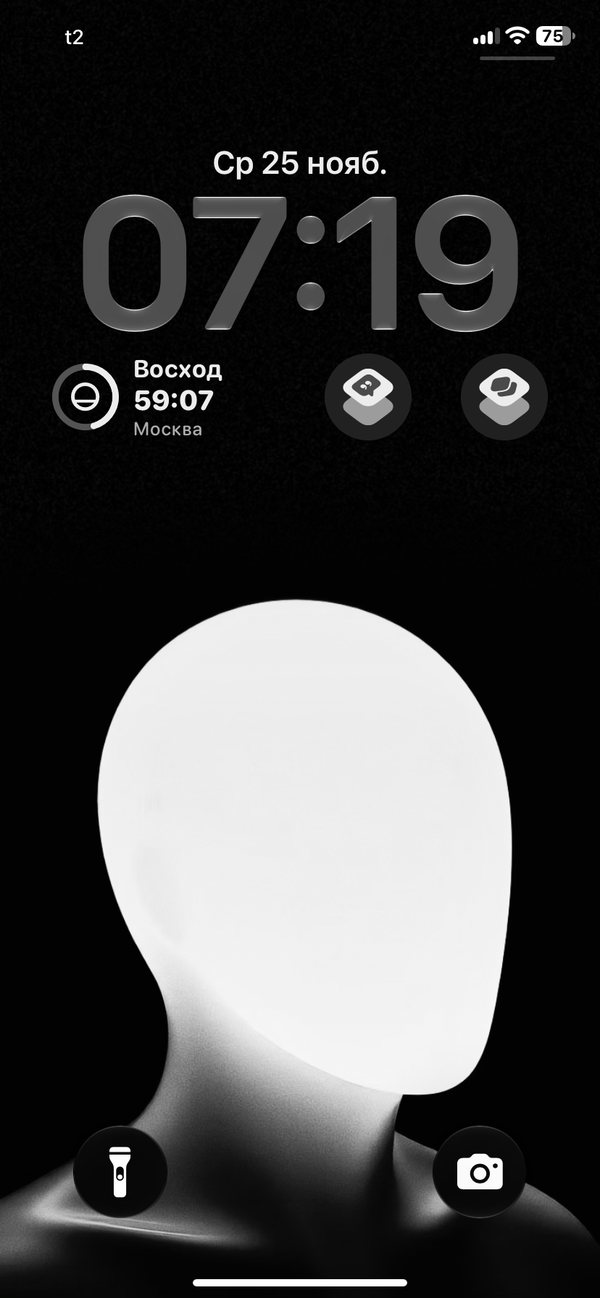
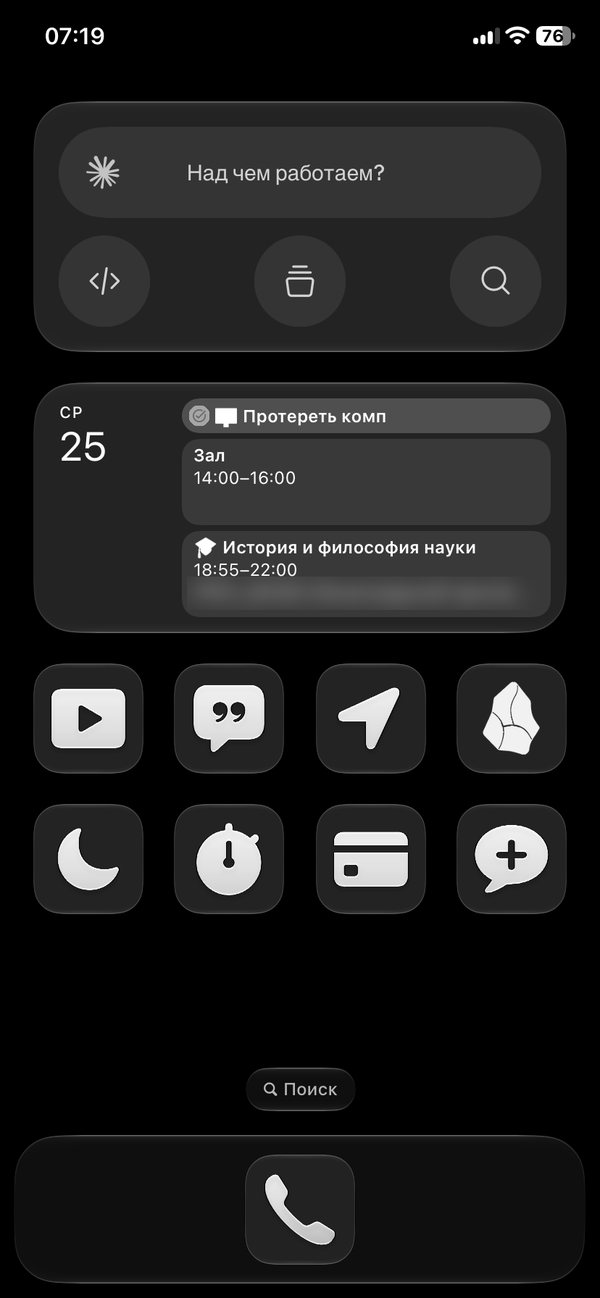
My lock screen and my entire home screen — one page, 8 buttons.
The most useful bits — right away
- ⚡ A thought into Obsidian in 2 seconds, without unlocking the phone → Quick thought
- 📷 Photos and files from the phone — straight to the computer, no sending them to yourself → Elton PC
- 💳 One button instead of a folder of banking apps → Menu button
- ⏰ “Remind me in 30 minutes” in 2 seconds → Reminder + time
- 💊 Habits that stay on the screen until you do them → Repeating reminders
- 🔁 Open an app — the right setting turns on by itself → Automations
- 📚 Obsidian in your pocket and a feed instead of TikTok → Elton AI
- 🤖 The same on Android → Android and other phones
I send thoughts and photos from the phone to my computer through my own server — it’s part of my Elton AI app. How it works and how to repeat it yourself is in each recipe below.
Contents
- What Shortcuts is and how to build your first button
- Lock screen — only what matters
- Reminders that keep habits alive
- One home screen
- A menu button instead of a folder of apps
- Small tasks — out of your head in 2 seconds
- Automations
- Obsidian in your pocket and a feed instead of TikTok
- Android, Xiaomi, Samsung and others
Why your hand reaches for the phone
Every bright icon and every red badge is a promise of a reward. And dopamine is released not so much by the pleasure itself as by its anticipation: dopamine neurons respond to signals that predict a reward, and most strongly to an unexpected one (Schultz, 2016). Notifications arrive unpredictably — the same “variable reward” slot machines are built on (Harvard SITN). That’s why we check the phone even when we’re not expecting anything.
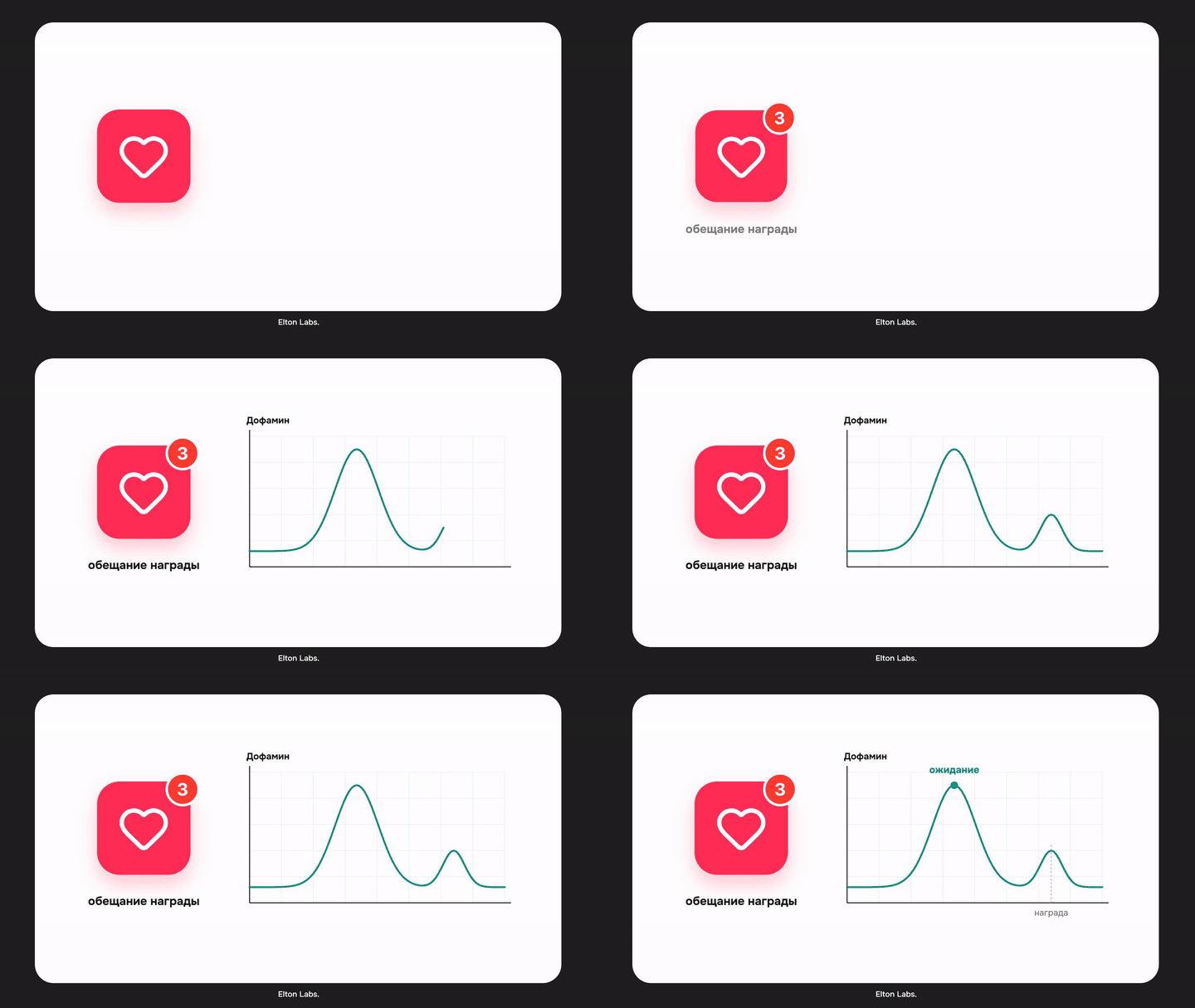
So the fight isn’t with willpower but with signals: remove everything on the phone that promises a reward and keep what you actually need.
0. What Shortcuts is — in 3 minutes
Shortcuts is Apple’s built-in app — it’s already on your iPhone. A shortcut is a chain of actions the phone runs by itself with one tap: ask you for some text → send it somewhere → show a notification. No programming: you put actions together like building blocks.
Why I use it: one shortcut replaces 3–5 taps and, most importantly, doesn’t walk me past bright icons. Tap the button — get it done — close it.
Where you can run a shortcut:
- as an icon on the home screen — all 8 of my buttons work this way;
- as a button on the lock screen;
- from the Share menu in any app (that’s how I send photos to my computer);
- by voice with Siri or with the Action button;
- automatically — on an event: you opened an app, came home, a certain time arrived.
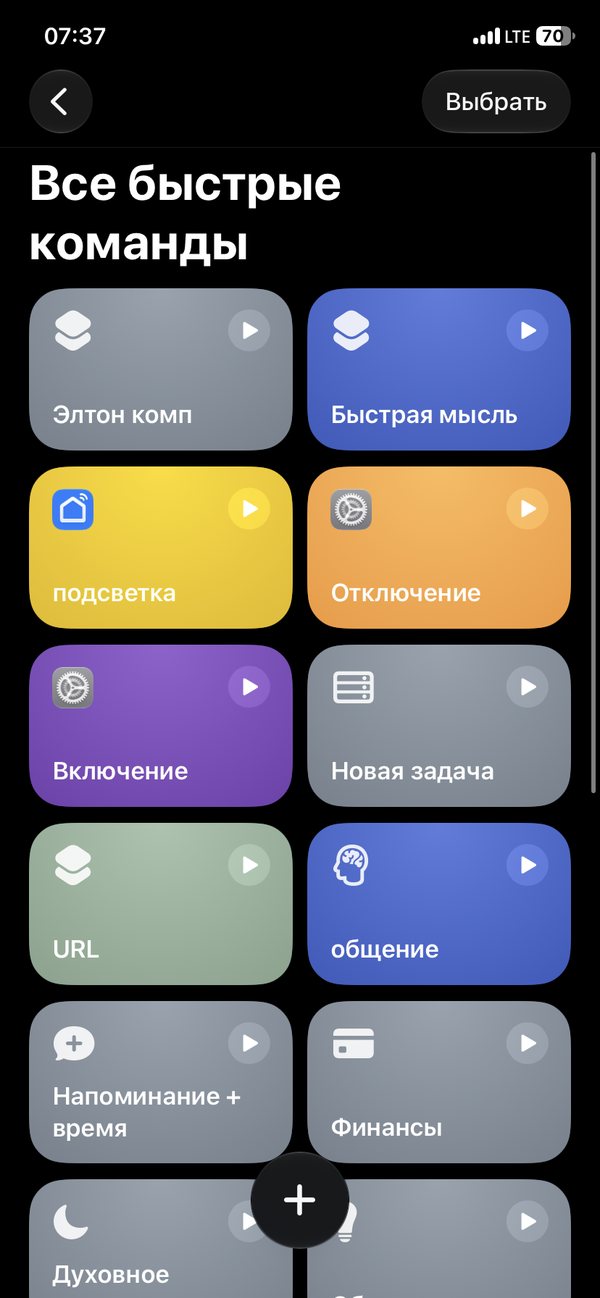
Left — all my shortcuts. Right — the editor: the Search panel at the bottom is where you add actions (my phone is in Russian).
How to build your first shortcut:
- Open Shortcuts → the Shortcuts tab → the ”+” button at the bottom of the screen.
- A panel with a Search field appears at the bottom. Tap it and start typing the name of an action — for example, “Choose from Menu” — and tap the action you find. It’s added to the shortcut.
- Blue words in an action are its settings. Tap them and choose: what text to ask for, which app to open, how many minutes the timer runs.
- Add the next actions the same way — through Search. They run top to bottom.
- ▶ in the bottom-right corner — test the shortcut.
- The name at the top (with the ▾ arrow) → rename it and pick an icon.
- The Share button (square with an arrow) → Add to Home Screen — the shortcut becomes an icon on your home screen.
The actions I use — a cheat sheet:
| Action (type it in Search) | What it does | Where I use it |
|---|---|---|
| Choose from Menu | shows a list of options in words | Finance, Media, AI, Rituals |
| Open App | opens the chosen app | under each menu item |
| Ask for Input | asks for text, a number or a time | Quick thought, New task, Reminder |
| Add New Reminder | creates a reminder with a time | Reminder + time |
| Get Contents of URL | sends data to a server | Quick thought, Elton PC |
| Start Timer | starts a timer | 2-minute timer |
| Show Notification | a short “Done” confirmation | Elton PC, timer |
| Search Web | opens a search for a query | AI → Google |
This is what running a shortcut looks like on an iPhone — the window appears at the top, the home screen stays underneath:
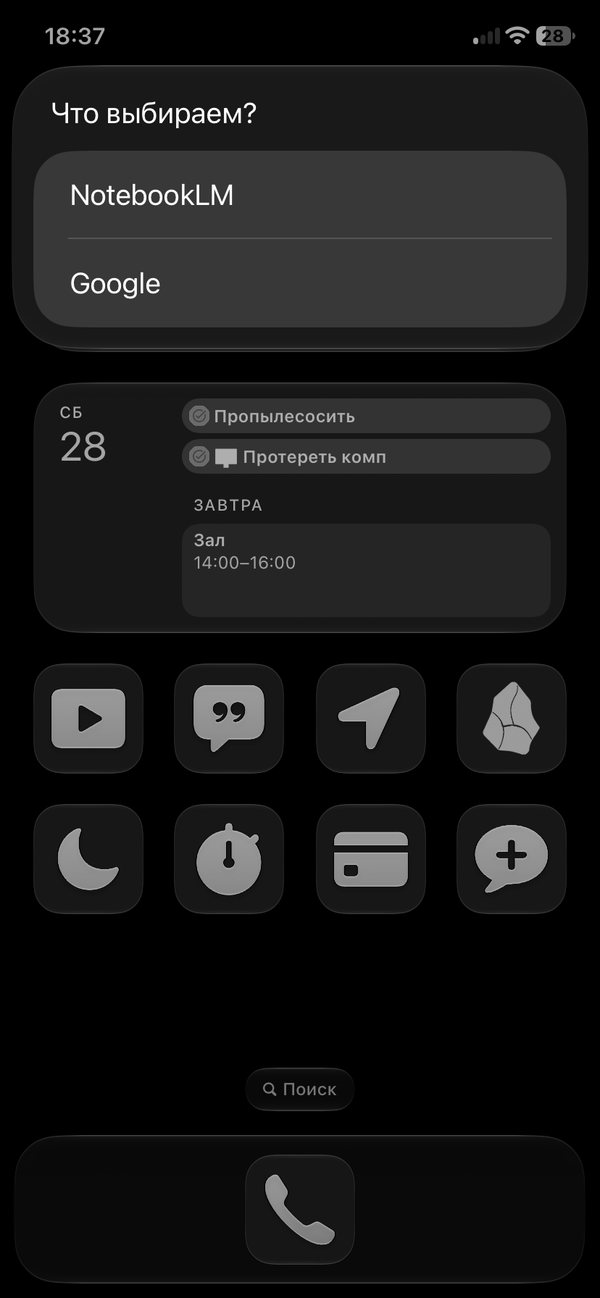
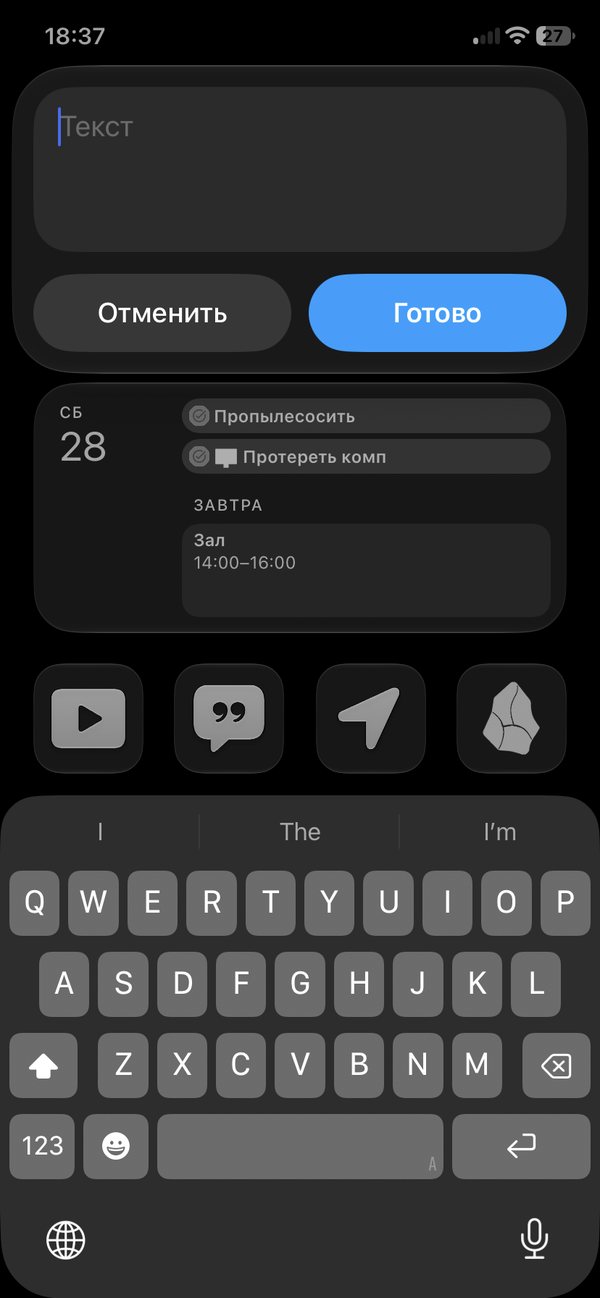
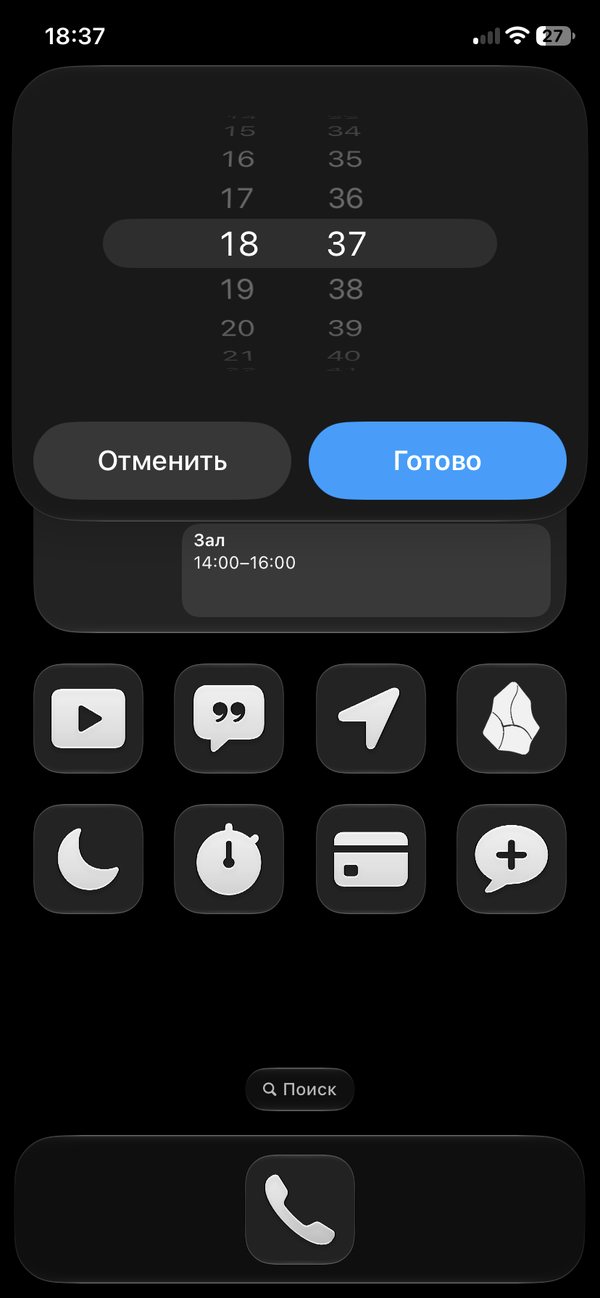
“Choose from Menu”, “Ask for Input — text” and “Ask for Input — time”.
1. Lock screen — only what matters
In the morning I pick up the phone and there’s almost nothing on the lock screen: the clock, the time until sunrise and two buttons — “Quick thought” and “Elton PC”.
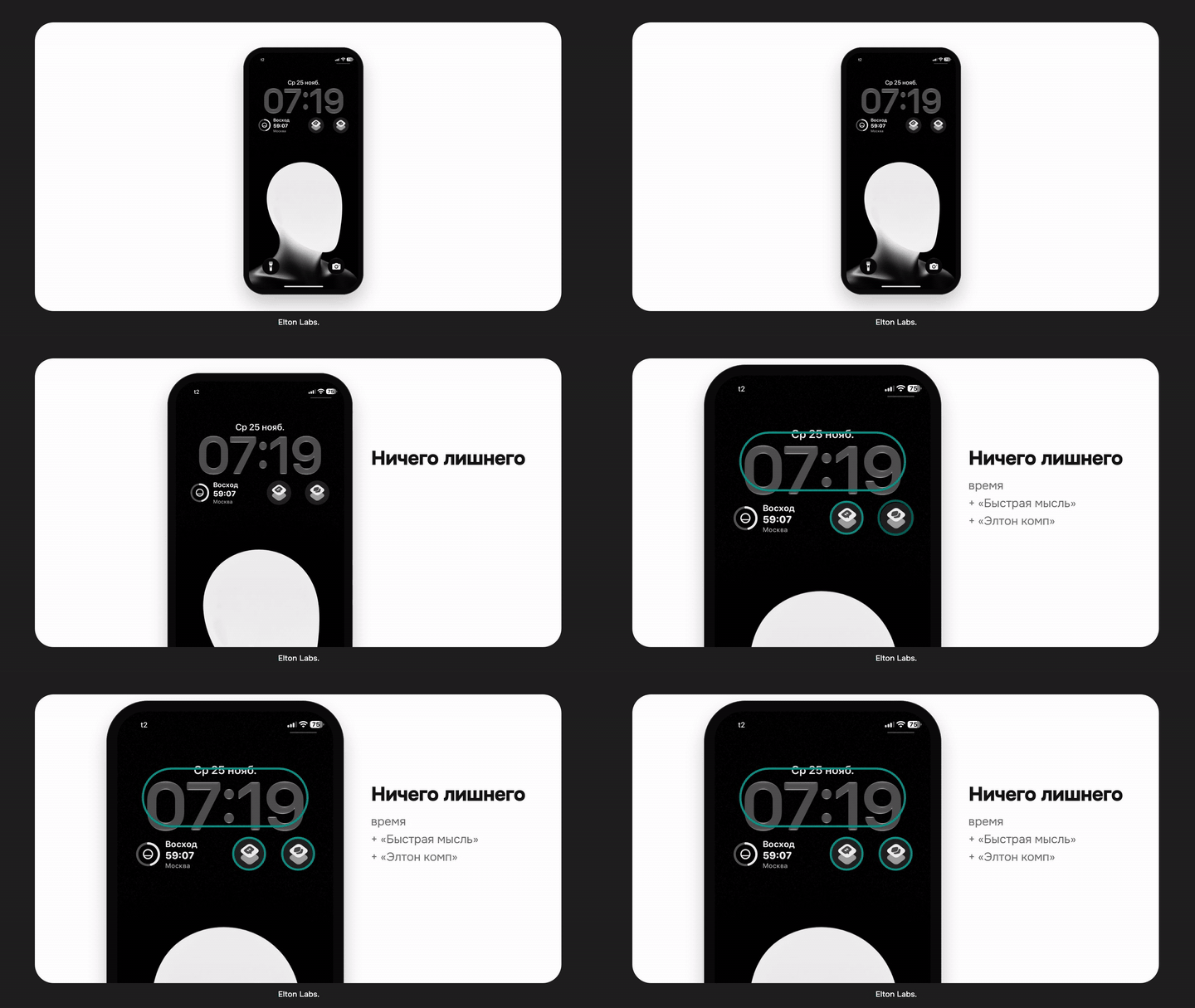
How to do it on an iPhone:
- Turn off notification previews: Settings → Notifications → Show Previews → Never. The phone stops showing who wrote what — which means it stops calling you.
- Unsubscribe from the noise: email newsletters, news channels, notifications from apps you don’t need every day (Settings → Notifications → app → Allow Notifications — off).
- Shortcut buttons on the lock screen: press and hold the lock screen → Customize → Lock Screen. In iOS 18 and later you can replace the flashlight and camera buttons at the bottom: ”−” on the button → ”+” → Shortcuts → pick your shortcut. If you want buttons in the widget row under the clock, like mine, third-party shortcut-launcher widgets do that (for example, LockFlow or Quick Launch).
What to keep on the lock screen
The clock, reminders and 1–2 buttons you use every day. Everything that’s “interesting to check” — remove.
2. Reminders that keep habits alive
The only thing that can stay on my lock screen is my reminders: take vitamins, take pills, morning and evening routines. Until I mark a reminder as done, it just stays there — it’s impossible to skip.
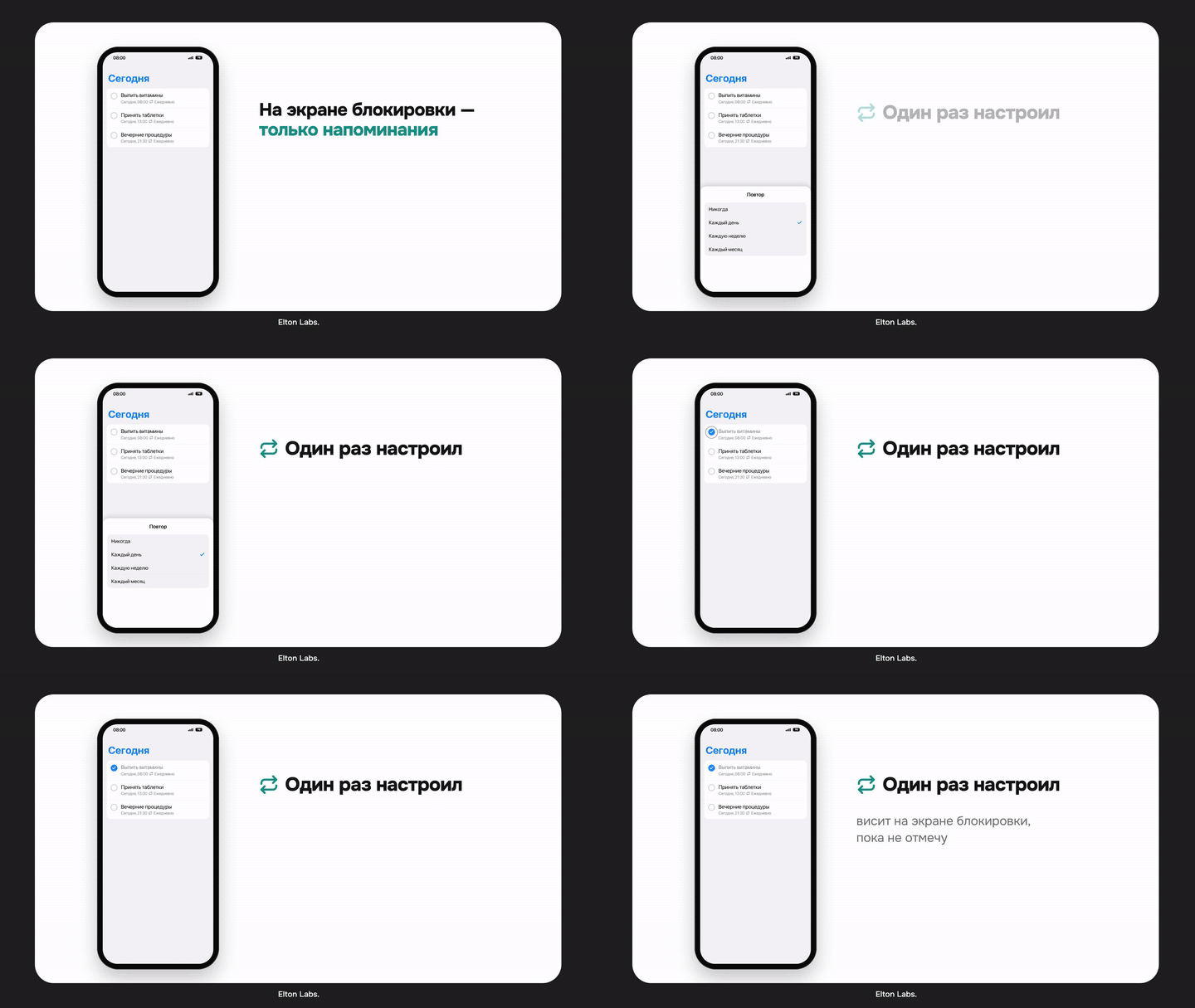
How to do it: the Reminders app → new reminder → ⓘ → turn on Date and Time → Repeat → Daily. You set it up once.
Repeat — in the calendar too
I also set recurring things (cleaning, payments, the gym) to repeat in Google Calendar. How I split things between the calendar and Obsidian — in the previous article: Order in productivity: Google Calendar + Obsidian.
3. One home screen
When I unlock the phone, this is my entire home screen. One page, nothing to swipe to.
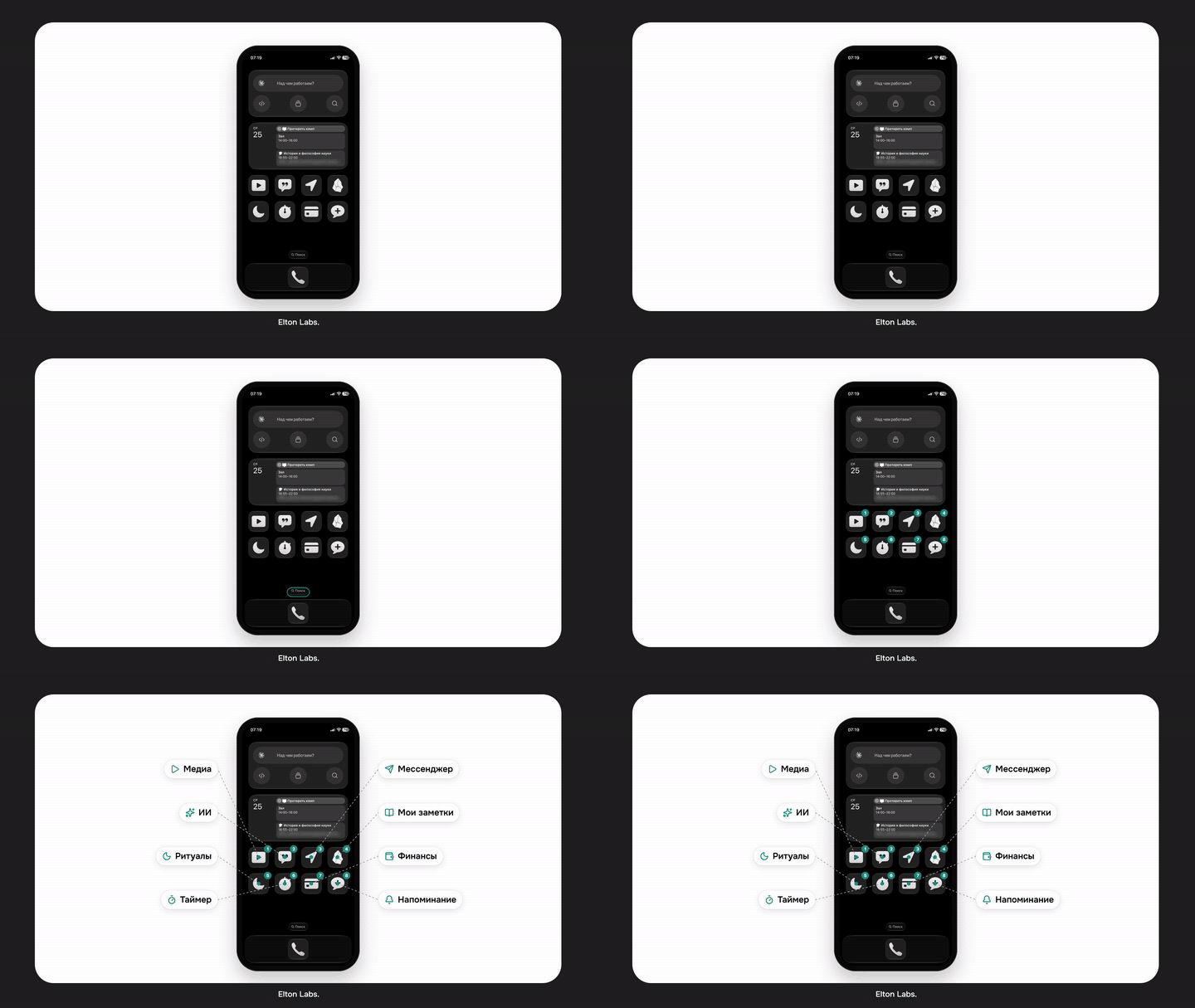
- At the top — an AI widget asking “What are we working on?“. If I need to ask something, I type right here without passing by other apps.
- Below it — the calendar for today only. One glance is enough to see what my day looks like. I plan everything on the computer; on the phone I only look.
- Below that — 8 buttons. They aren’t apps but shortcuts with menus (more on them below).
How to do it on an iPhone:
-
Hide extra pages: press and hold an empty spot → tap the page dots at the bottom → untick every page except one. Your apps don’t disappear — they stay in the App Library (swipe left all the way) and in search.
-
Make your icons black and white — this is the new iOS look: press and hold an empty spot → Edit → Customize → choose Tinted → drag the color slider all the way to grey. All icons and widgets turn black and white, and bright colors stop shouting and calling you.
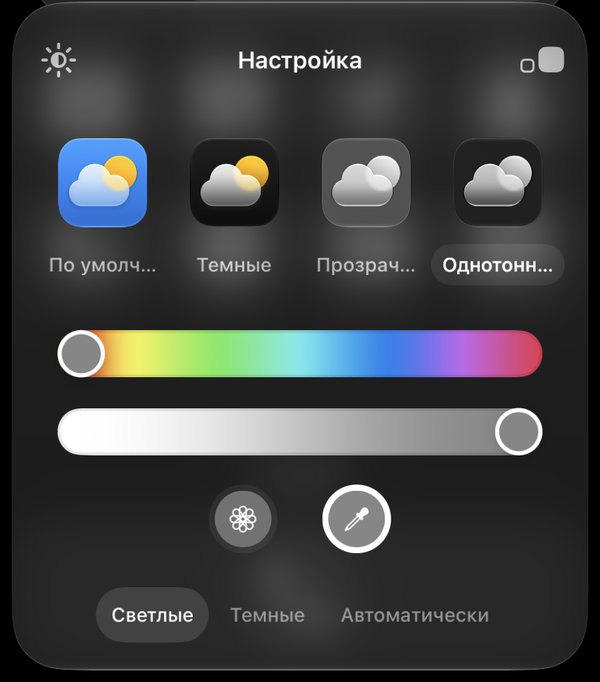
Icon settings in iOS: Tinted + grey — that’s what my home screen looks like.
-
Add widgets: press and hold an empty spot → Edit → Add Widget → Calendar (the “Up Next”/today view) and the widget of your AI assistant.
-
Add shortcut buttons to the screen: in the shortcut editor → Share → Add to Home Screen → choose a simple icon.
Don't delete apps
Whatever you delete comes back in a couple of days — you need the phone for studying, work and banking. What works is different: the app stays, but it’s one conscious step further away.
4. A menu button instead of a folder of apps
To transfer money, I used to scroll to the finance folder — and while I looked for the right bank, my eye caught on something bright. I’d go in to transfer money and come out twenty minutes later from a completely different app.
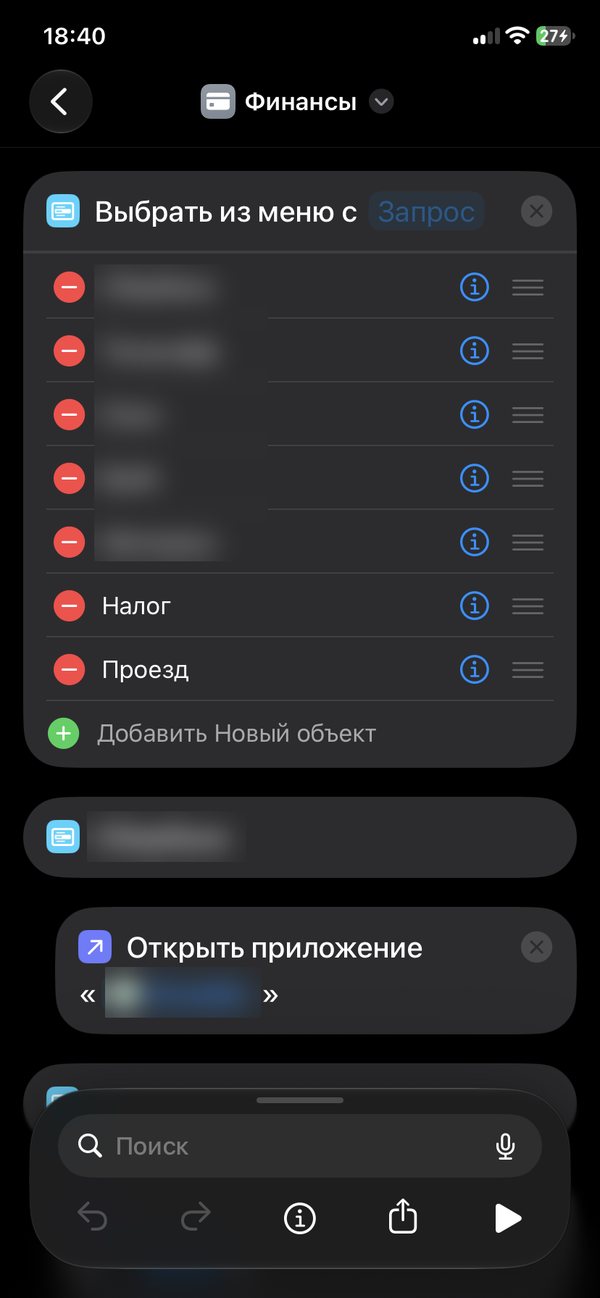
Now I tap Finance, and the phone shows a simple list in words. I pick one — exactly what I need opens. Done — closed.
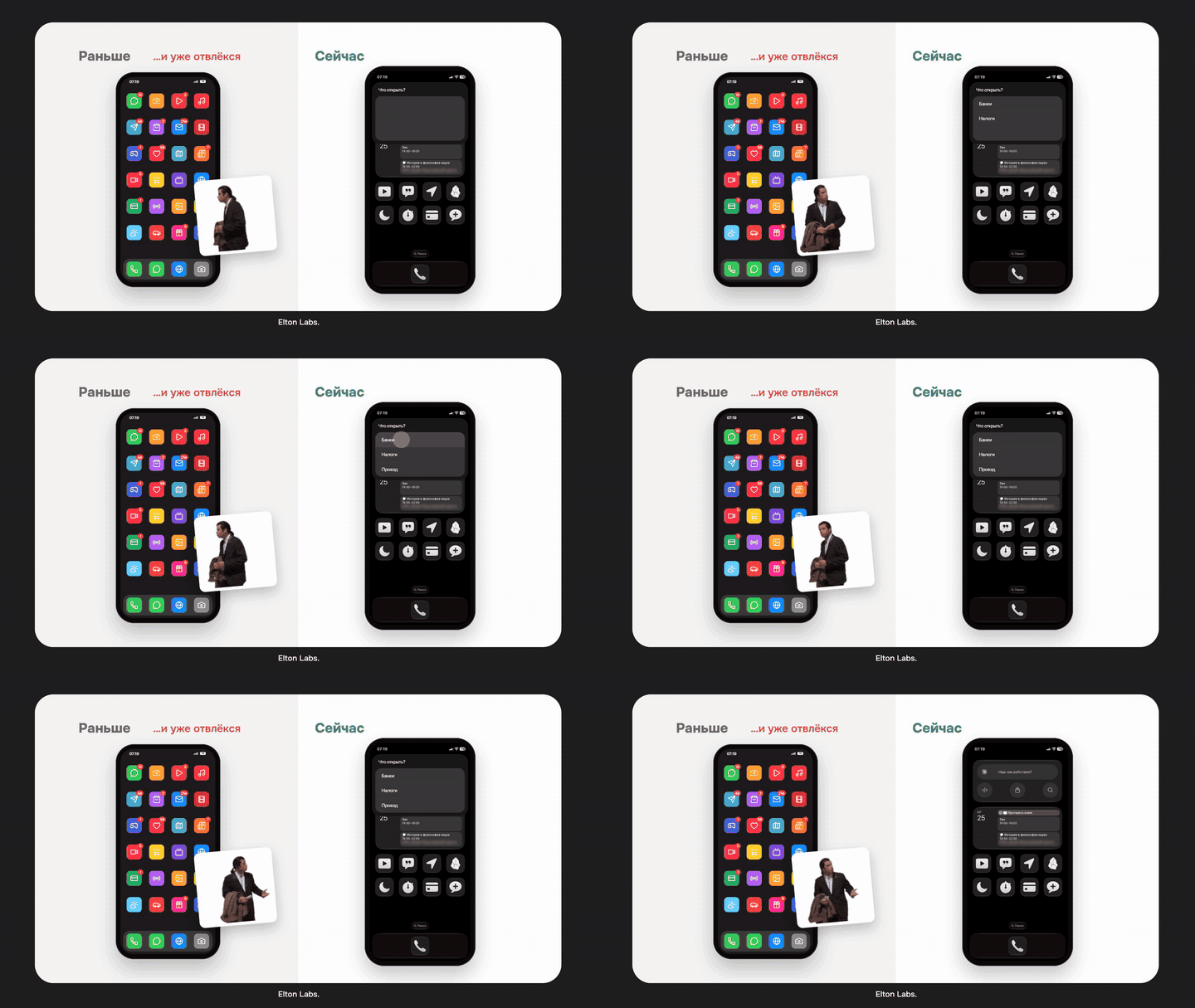
Yes, that’s one extra tap. But in front of a list of words I stop for a second and choose what I actually need.
How to build it (2 minutes):
- Shortcuts → ”+” → find Choose from Menu in Search.
- Type the options in words: bank, taxes, transit. Tap the blue “Prompt” if you want your own question (“What should I open?”).
- Under each option add Open App and choose the app.
- Name the shortcut “Finance”, pick an icon and put it on the home screen.
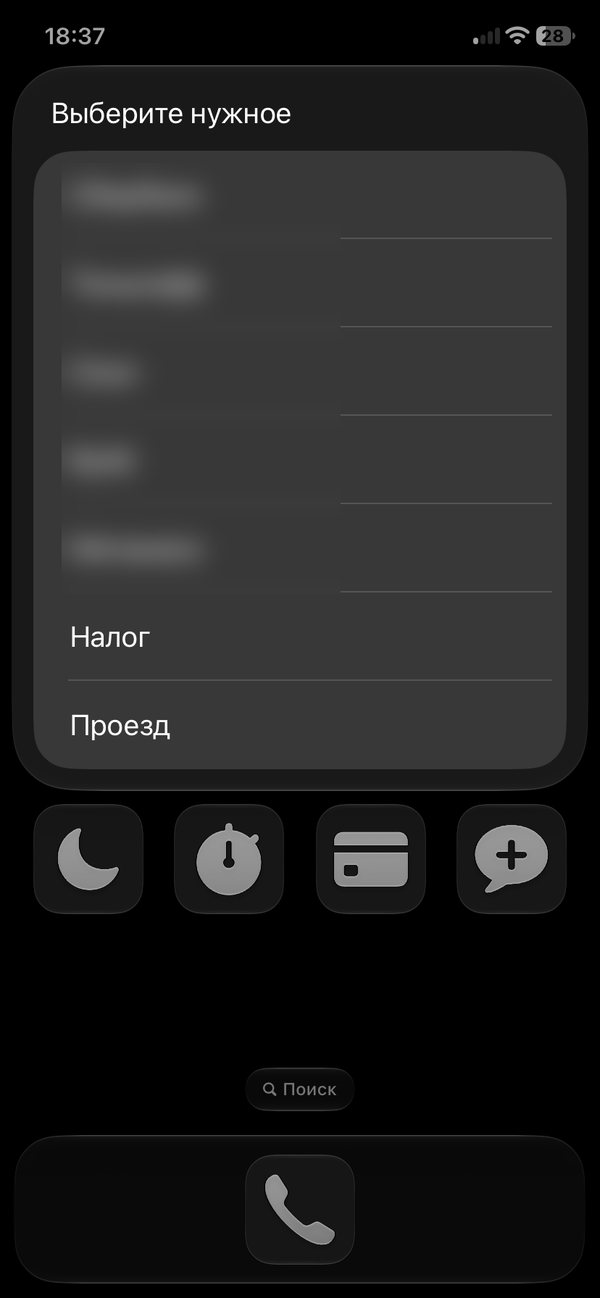
The Finance shortcut in the editor and when it runs (I’ve hidden the bank names).
My other buttons are built the same way:
| Button | Menu options |
|---|---|
| Finance | banks, taxes, transit |
| Media | videos, movies, music |
| AI | assistant for notes · Google search (asks for a query and opens the answer in the browser right away) |
| Rituals | 4 apps that used to be 4 separate icons |
The AI button with search — step by step
- Choose from Menu with the question “What do we pick?” → options “Assistant” and “Google”.
- Under “Assistant” → Open App.
- Under “Google” → Ask for Input (Text) → Search Web: “Provided Input” on Google.
- Done: tap the button, say the query — the answer opens in the browser.
Small tasks — out of your head in 2 seconds
What distracted me most wasn’t even social media but small tasks spinning in my head. You remember you need to do something, open the phone to write it down — and ten minutes later you’re scrolling something else, and the task still isn’t written down.
That’s why some of my buttons exist to unload a thought from my head in a couple of seconds.
Quick thought — straight into Obsidian
A thought comes — I don’t even unlock the phone: I tap “Quick thought” on the lock screen, dictate — and it’s already in today’s daily note in Obsidian on my computer. In the evening I open the note — and everything I thought up during the day is there.
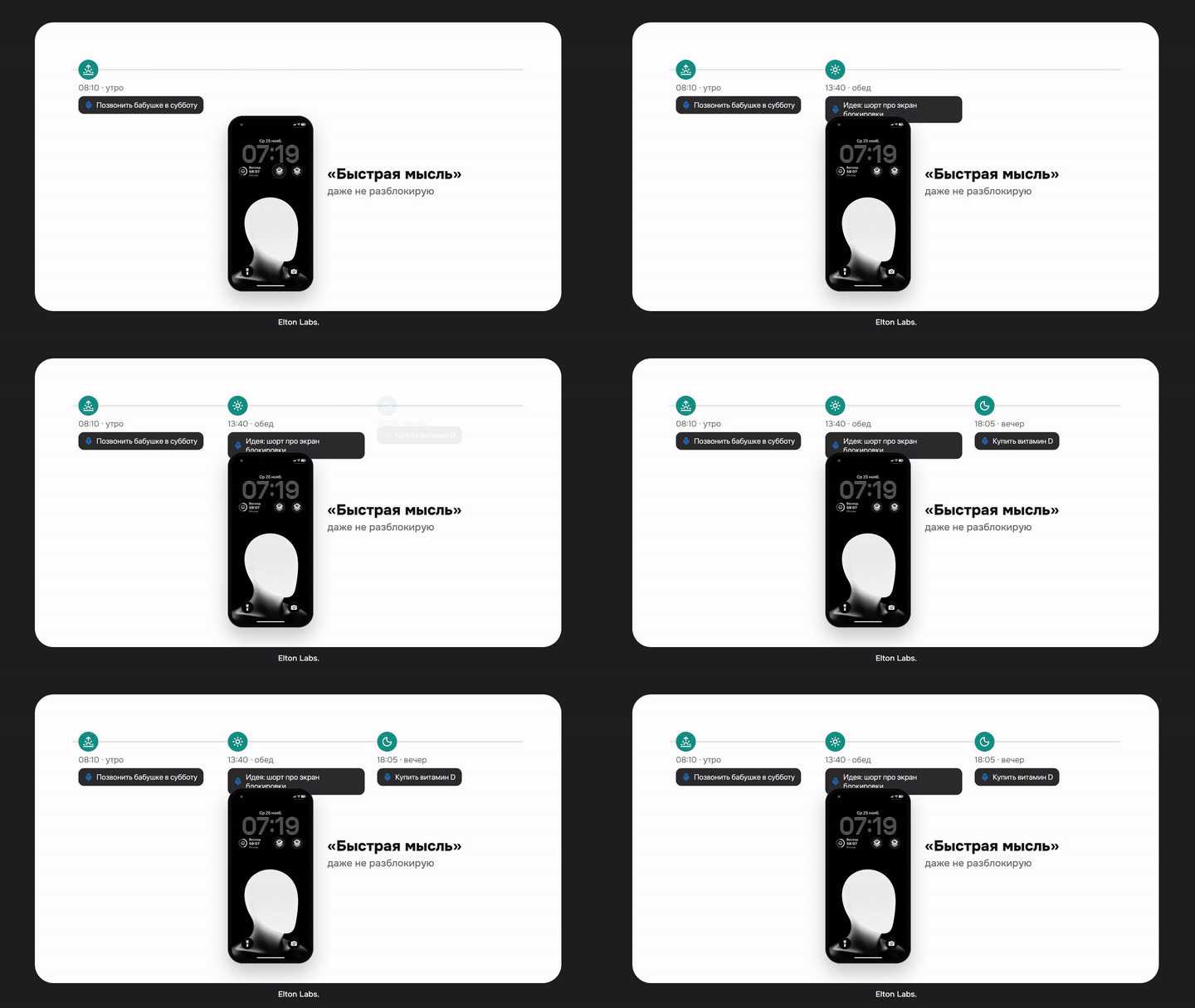
How it works: the shortcut sends the text to my own server for the Elton AI app (app.eltonlabs.org), and the Elton AI plugin in Obsidian on the computer picks it up and appends it to today’s note. If the computer is off, the thought waits and arrives when it’s back on.
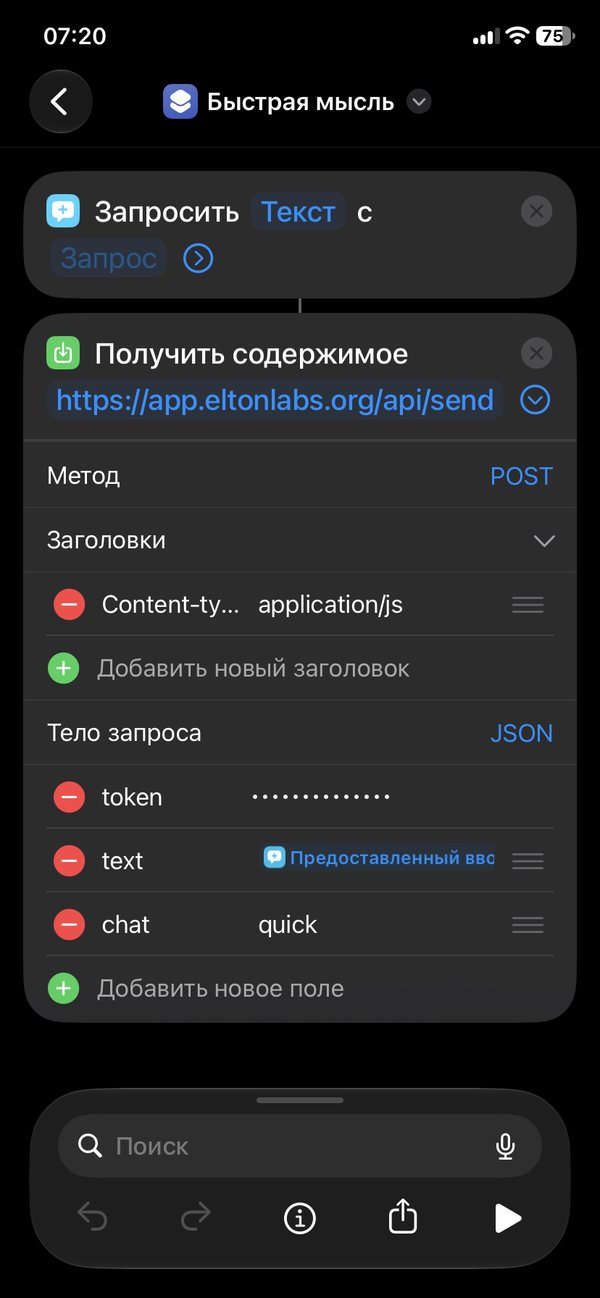
How to build it:
- Ask for Input → Text (you can dictate).
- Get Contents of URL → address
https://app.eltonlabs.org/api/send, method POST, headerContent-Type: application/json, request body JSON:token— your quick-capture key;text— “Provided Input”;chat—quick.
- Put the shortcut on the lock screen.
You get the quick-capture key in the Elton AI plugin → the Phone tab. Details on the Elton AI app page (the “Quick capture button” section).
The key is like a password
Anyone with the key can write to your vault. Don’t show the shortcut with the key in screenshots (it’s hidden on mine) and don’t share it in full. This button doesn’t encrypt the text, so for a personal journal write in the app itself.
Reminder + time
I load the washing machine — tap “Reminder”, the phone asks what and when: “take the clothes out of the washer”, in 30 minutes. Half an hour later it reminds me by itself. Same with an order: “pick up the order” in two hours.
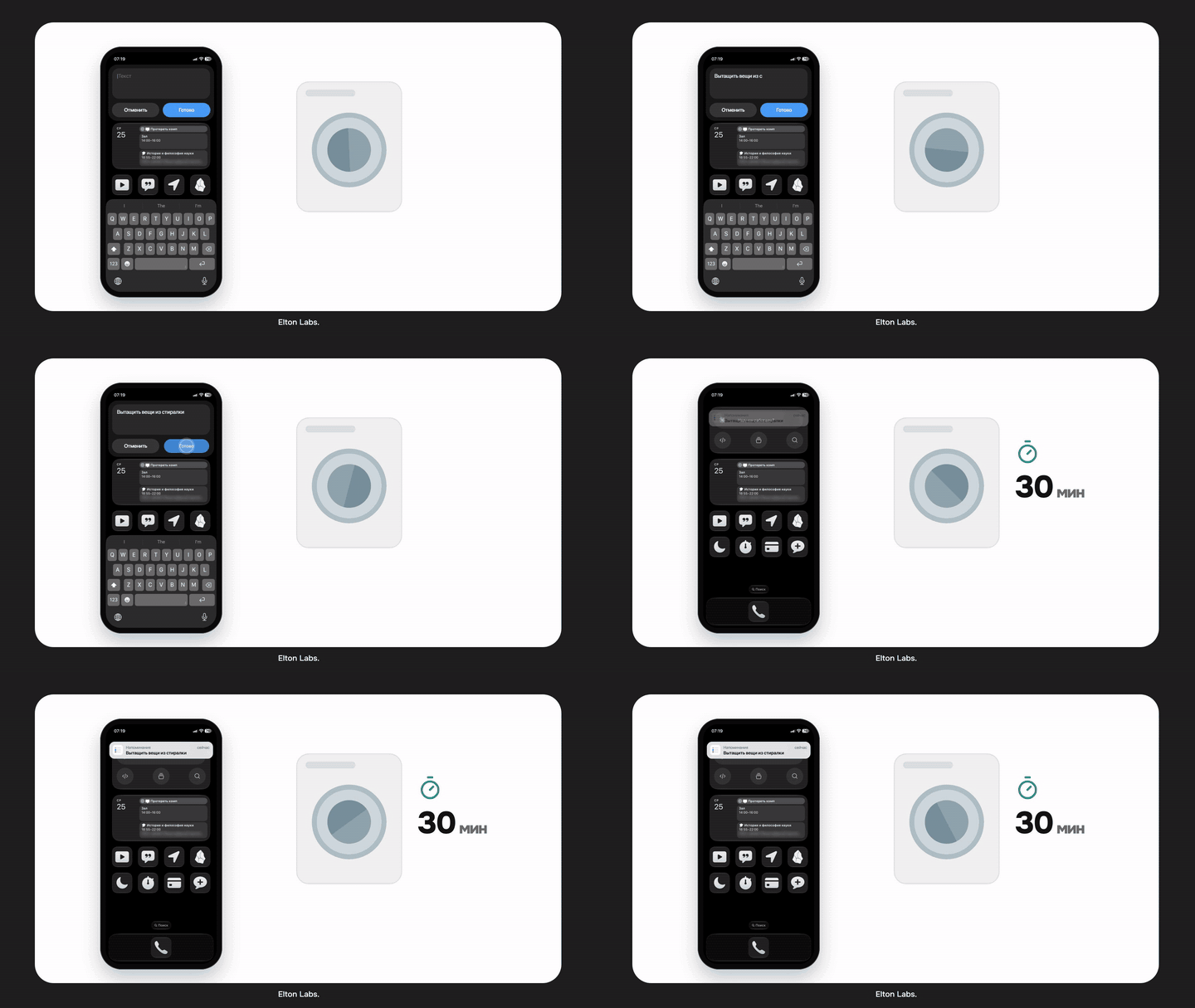
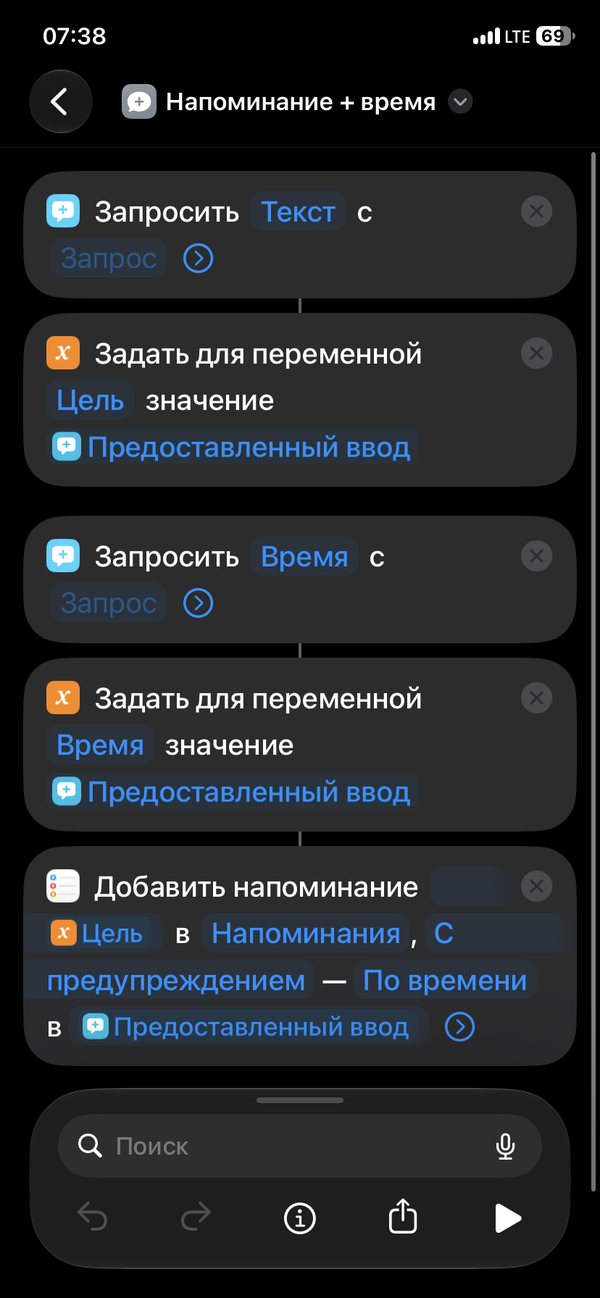
- Ask for Input → Text → Set Variable “Goal”.
- Ask for Input → Date and Time (iOS shows a time wheel) → Set Variable “Time”.
- Add New Reminder “Goal” to the “Reminders” list → Alert → At Time → “Time”.
New task and timer
- New task — “What’s the task?” → it goes straight into my tasks for today. The simplest version is the Add New Reminder action into a “Tasks” list. I send tasks to my Google tasks through a small script; if you keep tasks in Obsidian, use the same sending as for thoughts.
- 2-minute timer — for rest between sets at the gym: Choose from Menu “Start a 2-minute timer?” → “Yes” → Show Notification “Timer started” → Start Timer for 2 min.
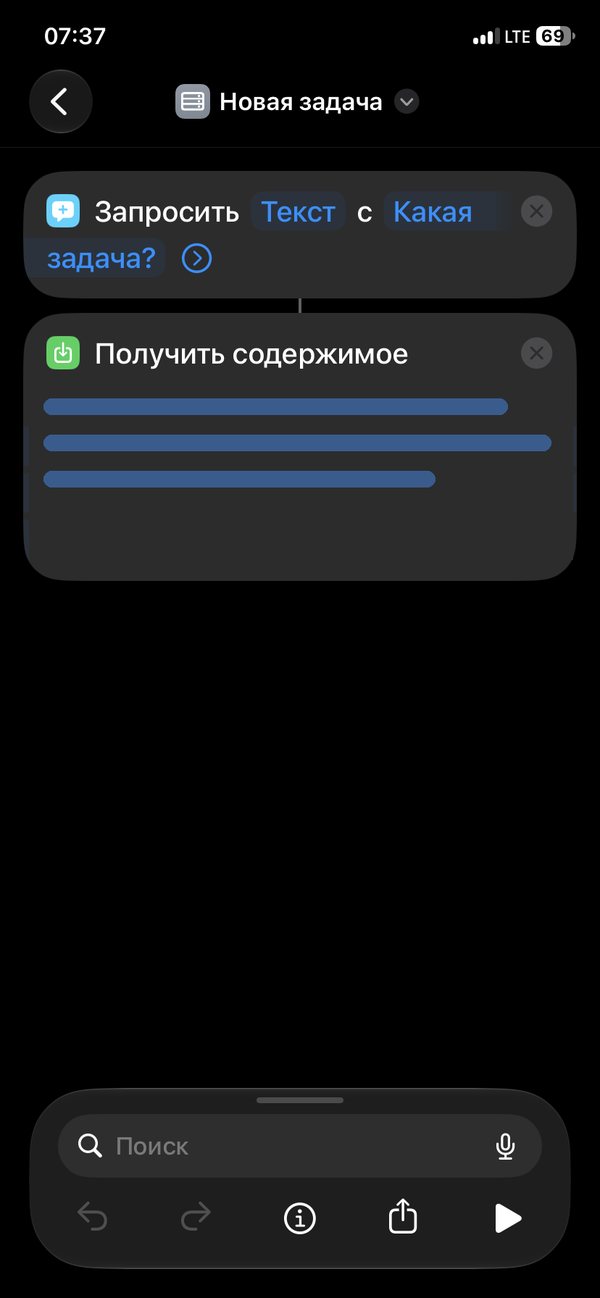
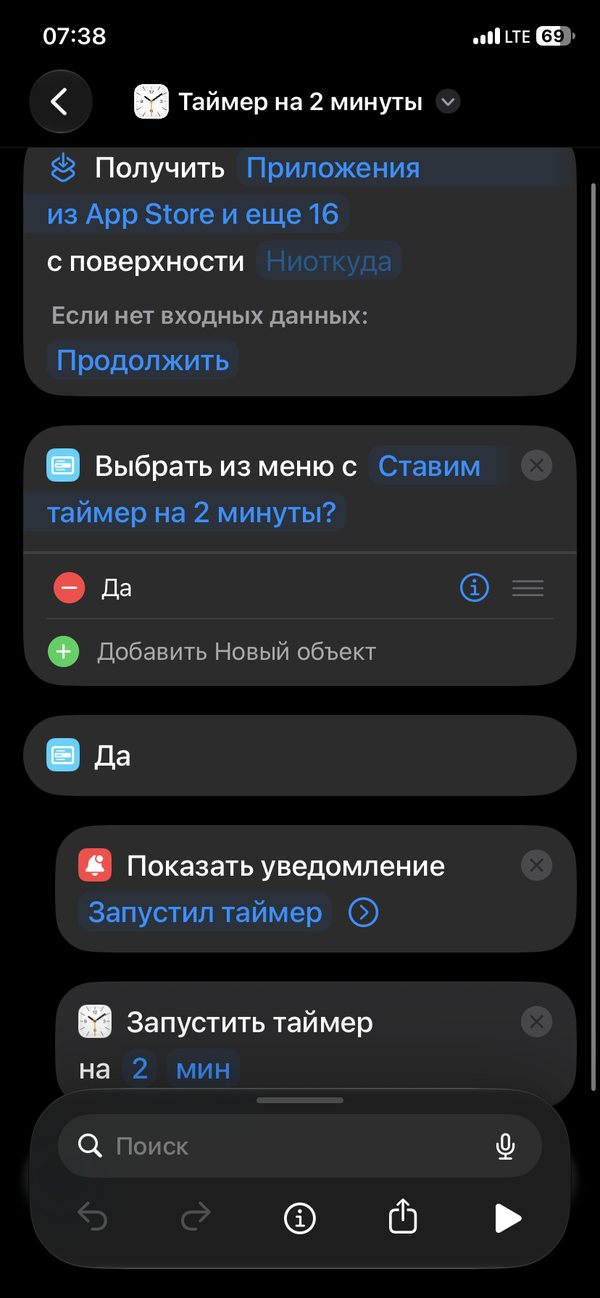
Photos and files — to your computer
I snap a lecture slide → Share → “Elton PC” — and the photo is already on my computer, no sending it to myself in a messenger.
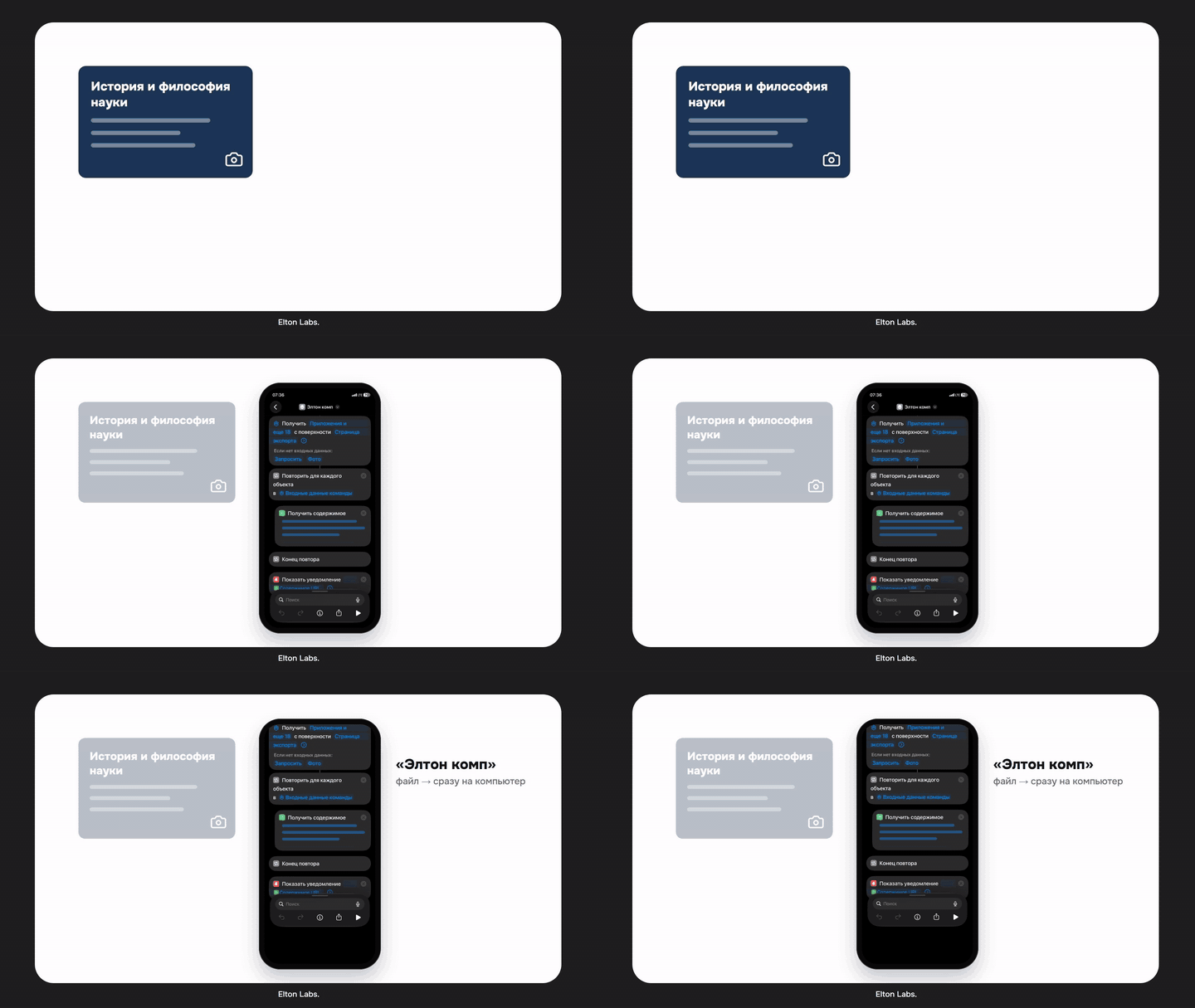
How it works: the shortcut takes everything I picked in the Share menu and sends it file by file to my own server, and from there each file lands straight in a folder on my computer. At the end the phone shows a notification that everything arrived.
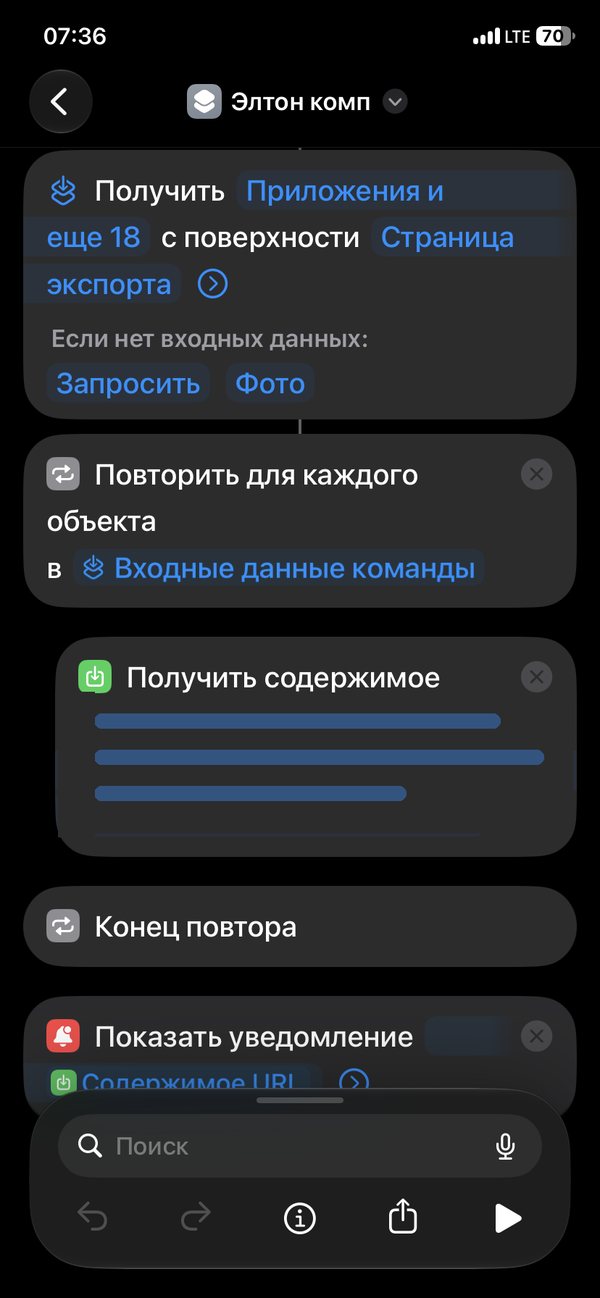
- In the shortcut settings (ⓘ) turn on Show in Share Sheet — type: photos, files.
- Repeat with Each item in “Shortcut Input”.
- Inside — Get Contents of URL (sends the file to the server).
- End Repeat → Show Notification.
If you don’t have your own server, the easiest way to repeat this is the Elton AI app: Share from any app → Elton AI → photo in “To note” mode — it goes straight into Obsidian. On a Mac, AirDrop does the same.
Why all this
I no longer need to keep small junk in my head: the laundry, the order, the meter readings. The phone remembers all of it.
5. Automations — open an app, a setting turns on
For some apps, YouTube for example, I need an extra network setting. I used to turn it on and off by hand and kept forgetting: either the video won’t load, or later the bank won’t open.
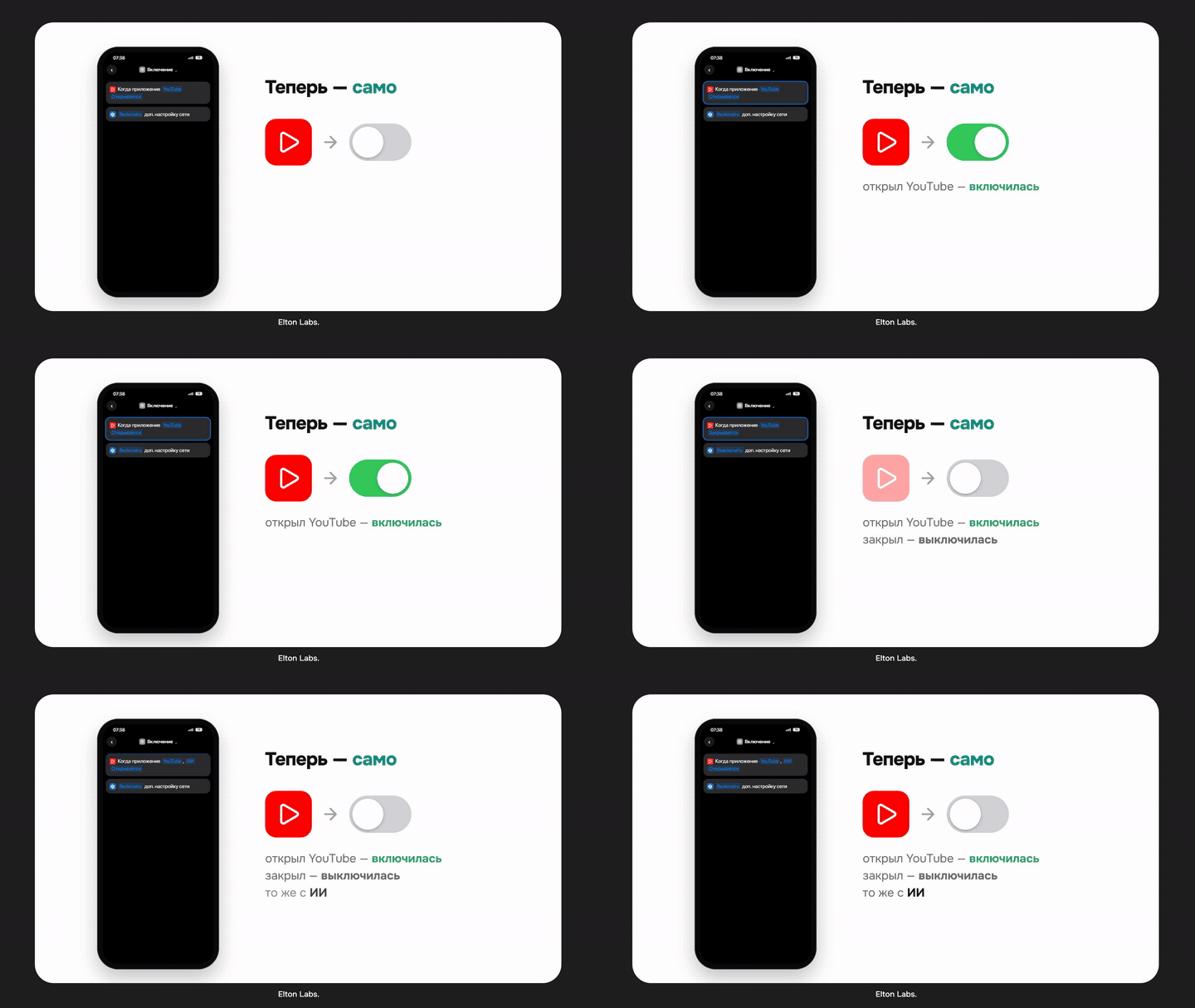
Now Shortcuts has a rule: open YouTube — the setting turns on, close it — it turns off. And the Media and AI buttons turn it on first and only then open the app.
How to do it: Shortcuts → the Automation tab → ”+” → App → choose the apps → tick Is Opened → Run Immediately → the action for the setting you need. The second automation is the same, but Is Closed and turning it off.
The same way you can turn on Do Not Disturb when you open a book, or dark mode when you open a reading app.
The rule of three
If I do something the same way more than three times a day, it needs to be automated.
6. Obsidian in your pocket and a feed instead of TikTok
I learned to send thoughts to Obsidian from the phone. But sometimes I need the opposite — to find something: open my notes on a topic, remember what I wrote about a book, or look at my note about parks while walking around the city.
That’s what the Obsidian icon on my home screen is for. It’s actually my app — Elton AI. The phone here is a remote control, and the assistant lives on the computer, in Obsidian, working directly with my notes.
The whole vault in your pocket — a free alternative to sync
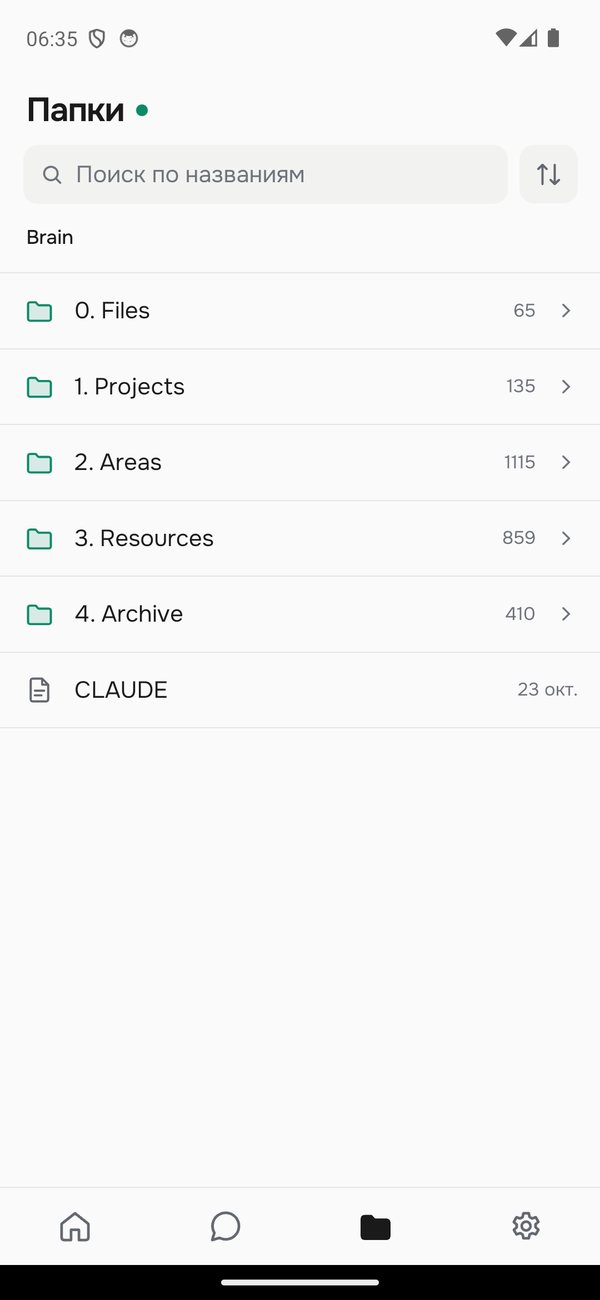
I open folders — and my whole vault is in my pocket, more than 2,500 notes, with the same folders as on the computer. Searching by title finds the note instantly, and a filter quickly narrows the list.
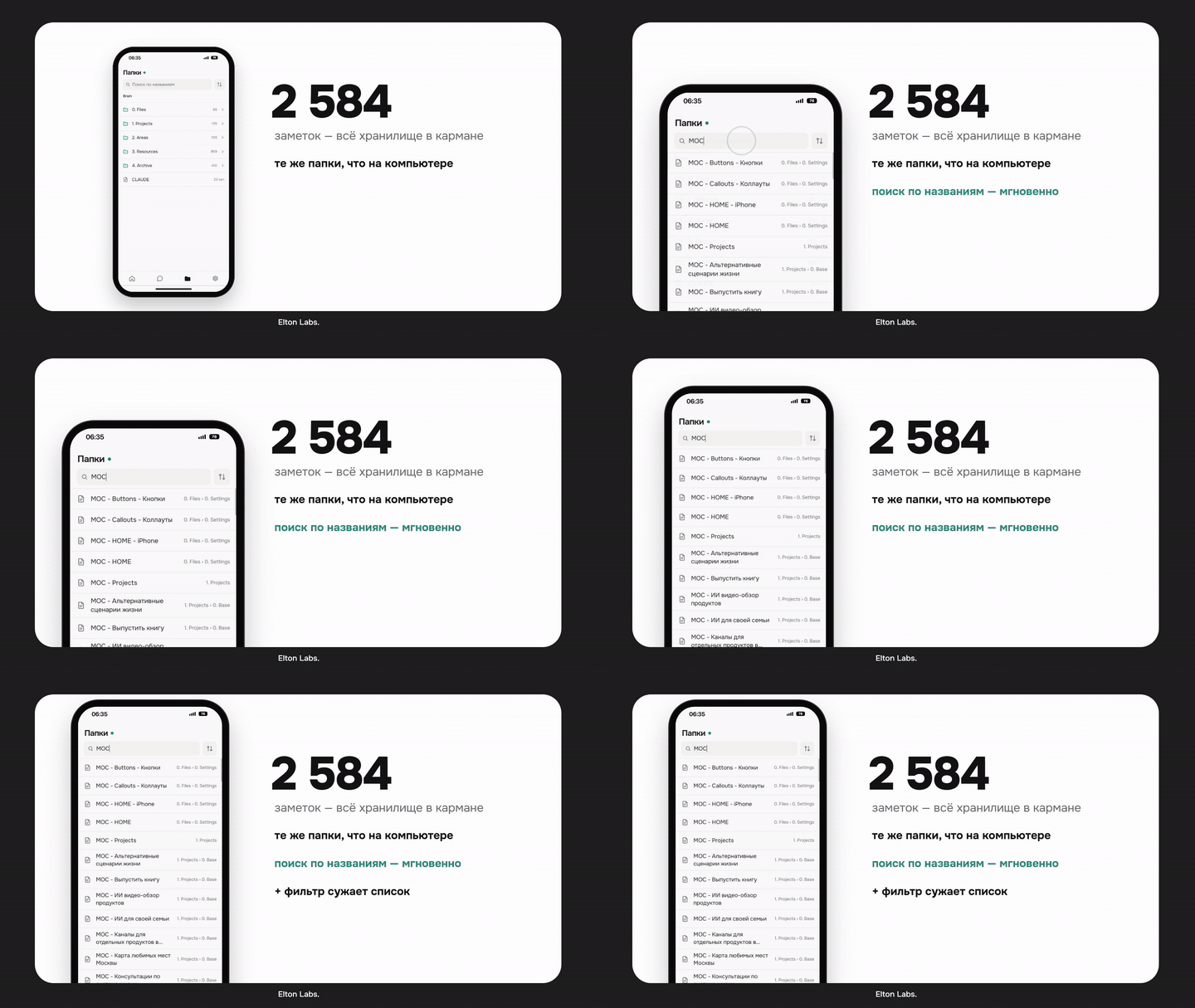
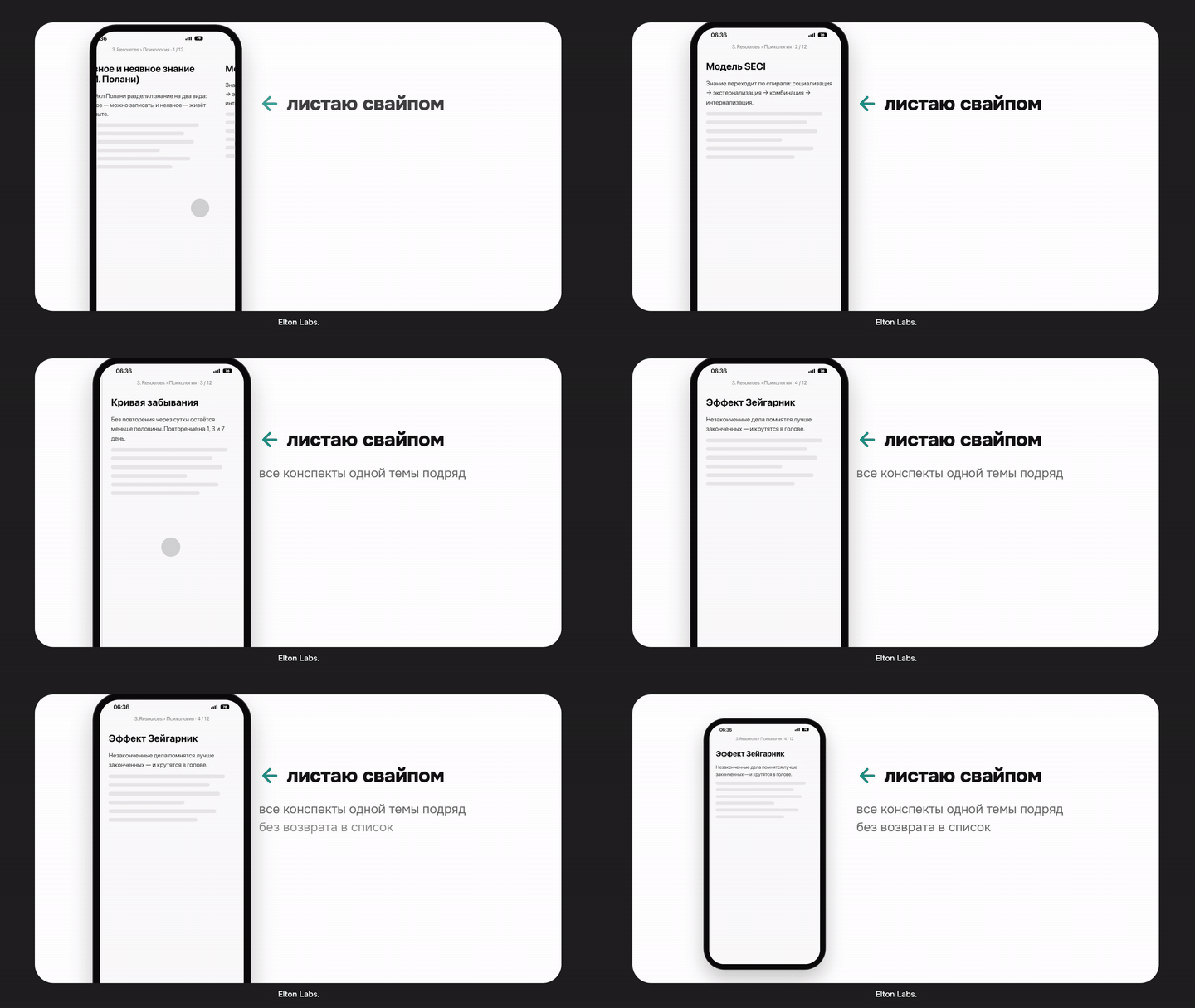
Inside a folder notes are swiped one after another — that’s how I run through all my notes on one topic without going back to the list.
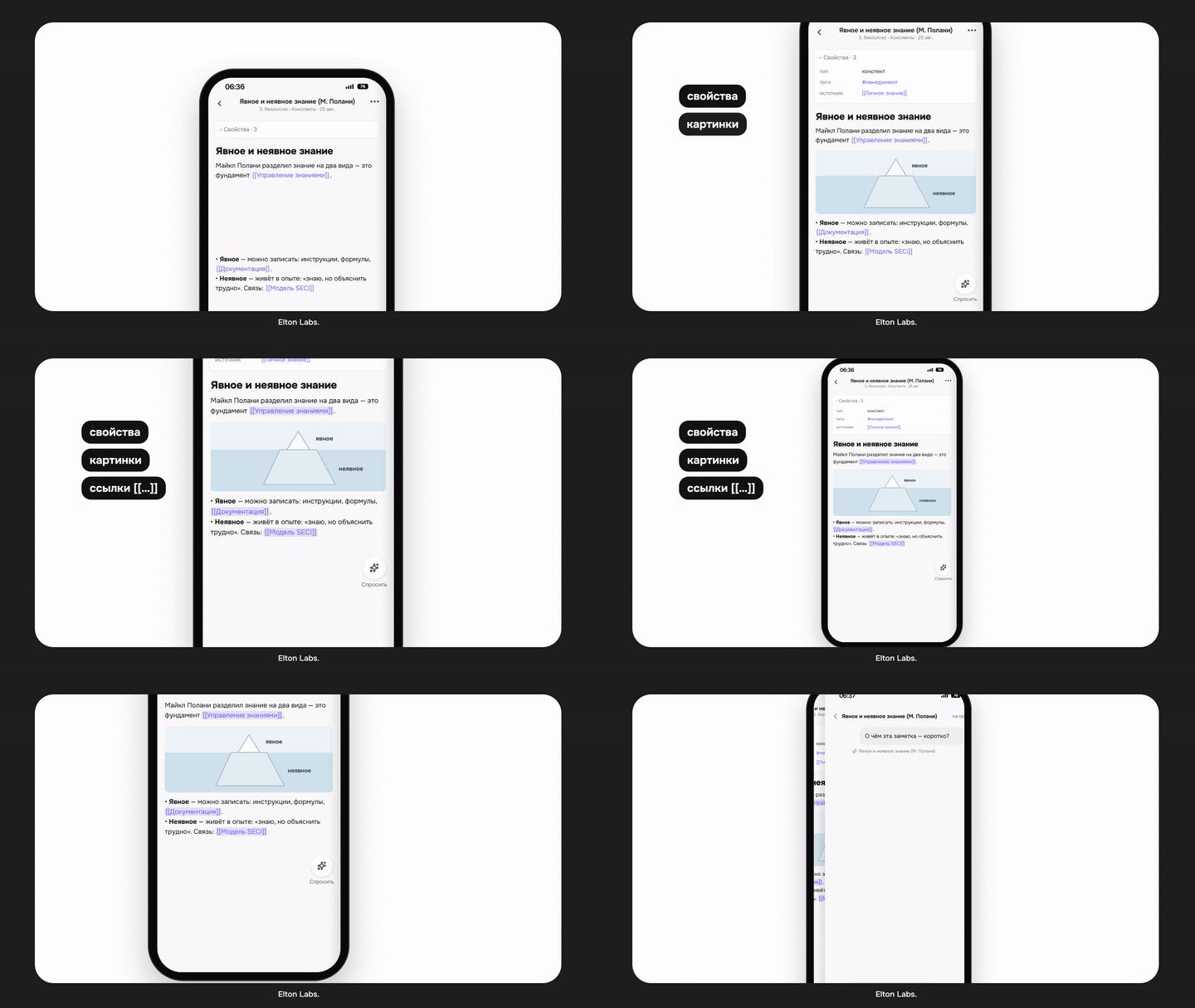
In effect it’s a free alternative to sync: you don’t have to pay to have your notes on your phone. A note opens just like on the computer — with properties, images and links, and the “Ask” button answers based on what you wrote yourself at some point.
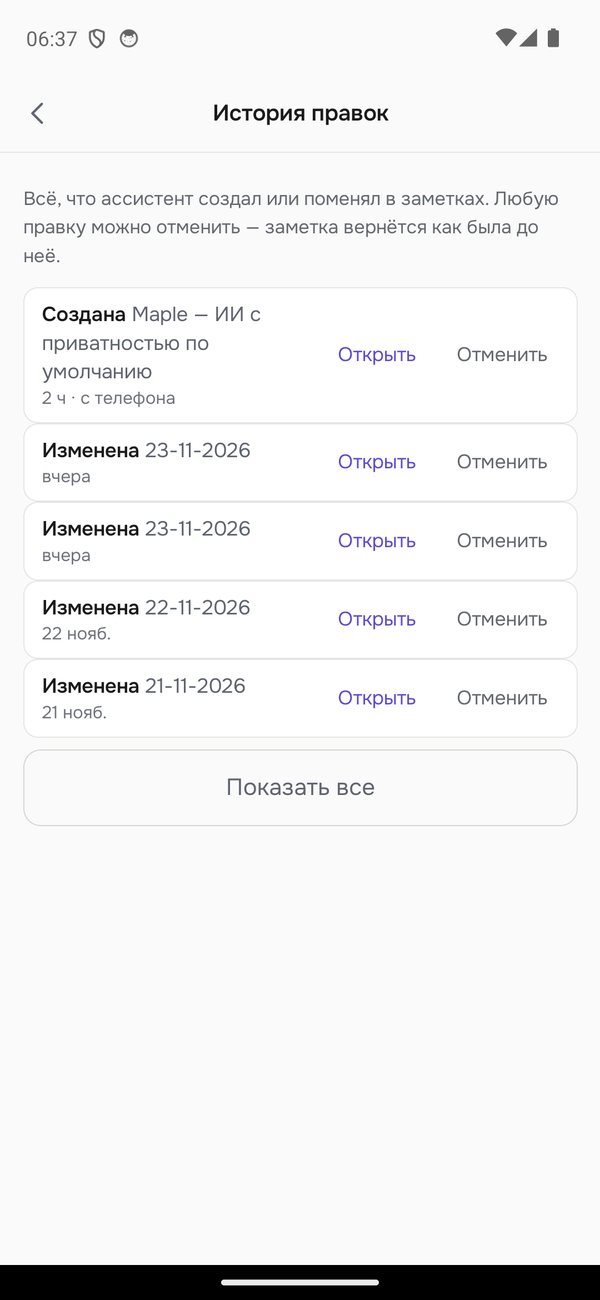
Everything the assistant created or changed is visible in the edit history, and any edit can be undone with one tap.
A feed instead of TikTok
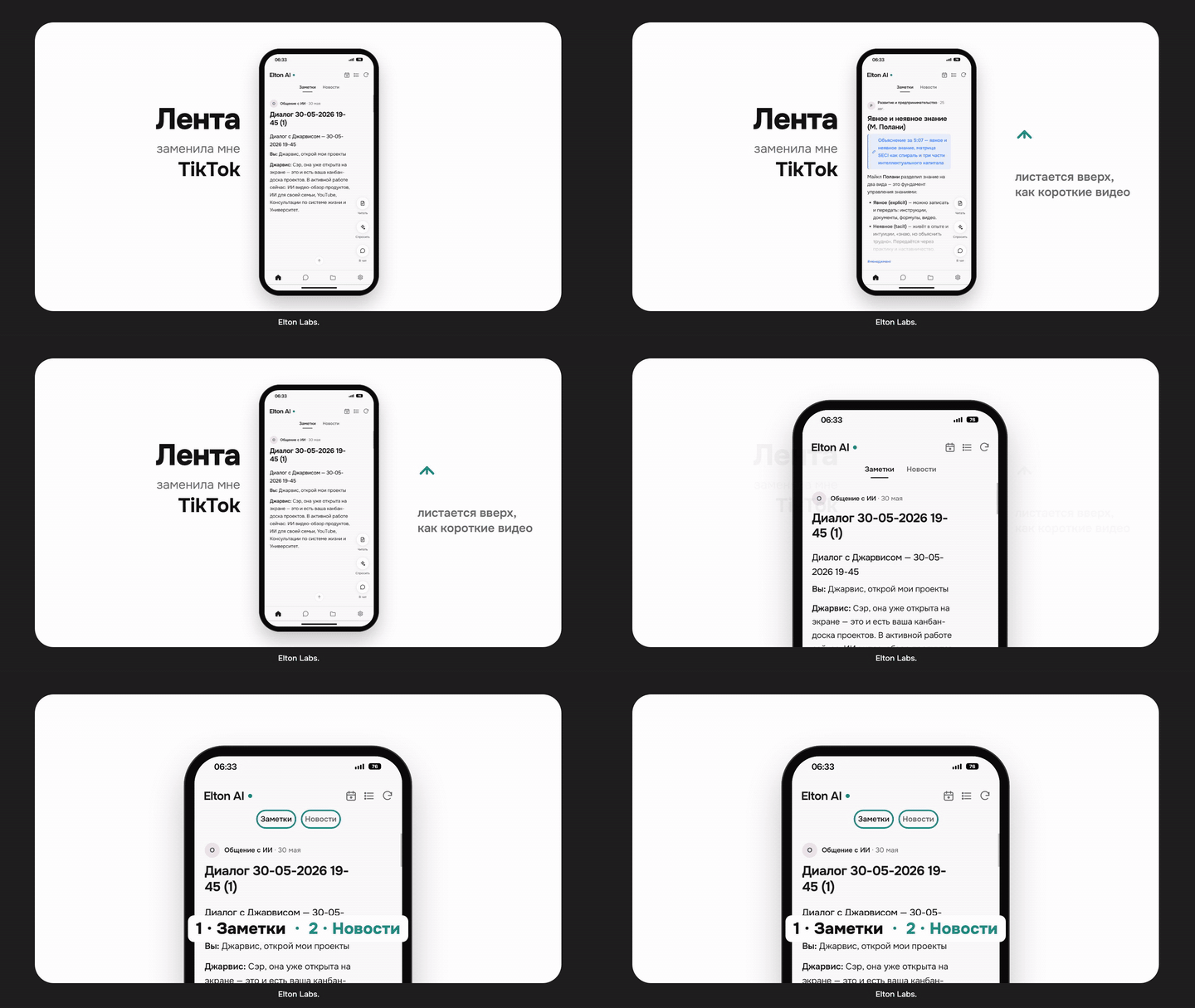
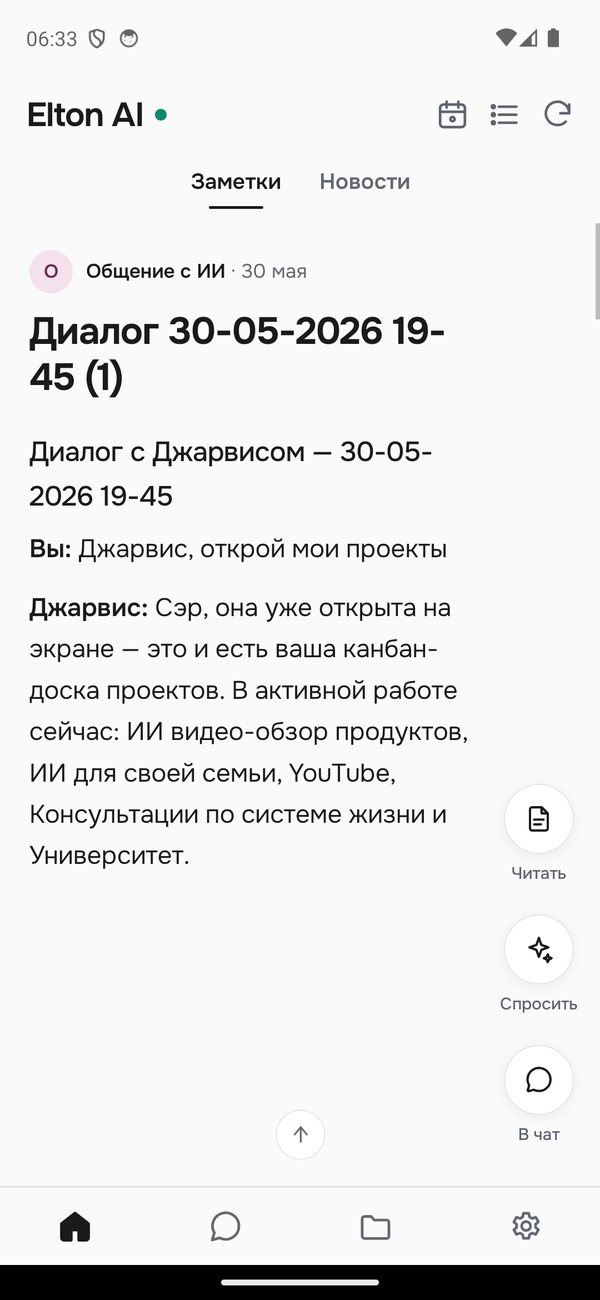
The main reason I open the app is the feed. It scrolls up like short videos, only it has two sections:
- My own notes in random order. I scroll and stumble on my notes about Michael Polanyi’s explicit and tacit knowledge, written back in August, then on a psychology note, then on a park I’d long wanted to visit. What I once wrote down and forgot comes back up.
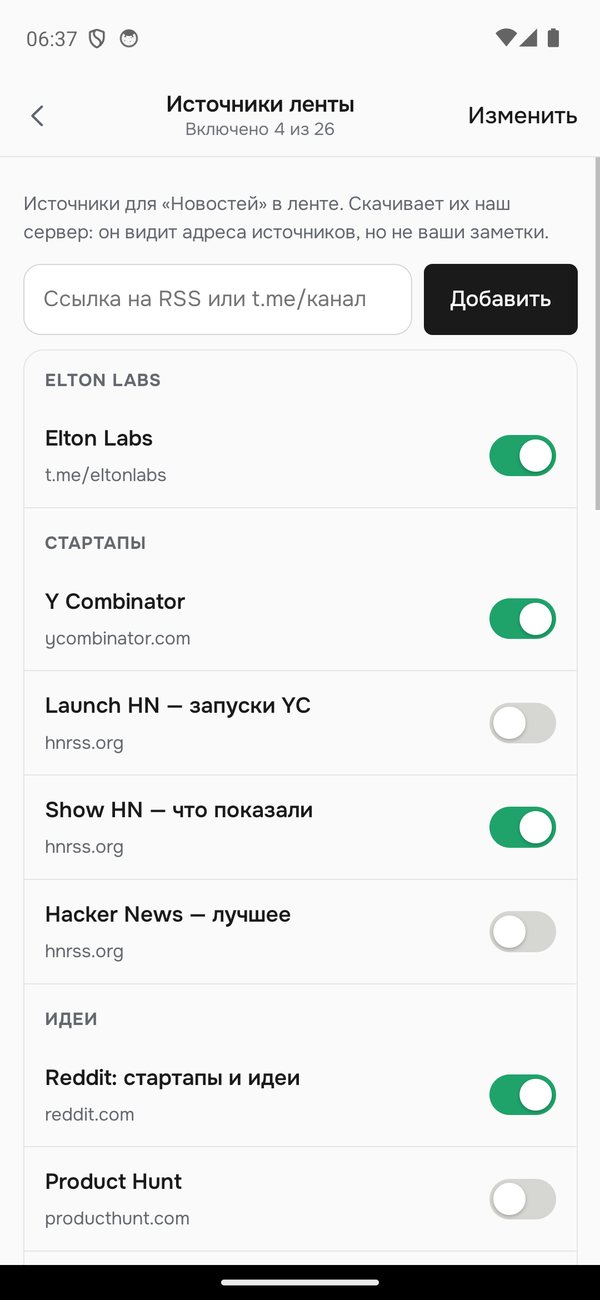
- News — only from sources I picked myself: my channel, startups, technology, business ideas. You add your own source with a link (RSS, a public Telegram channel, Reddit).
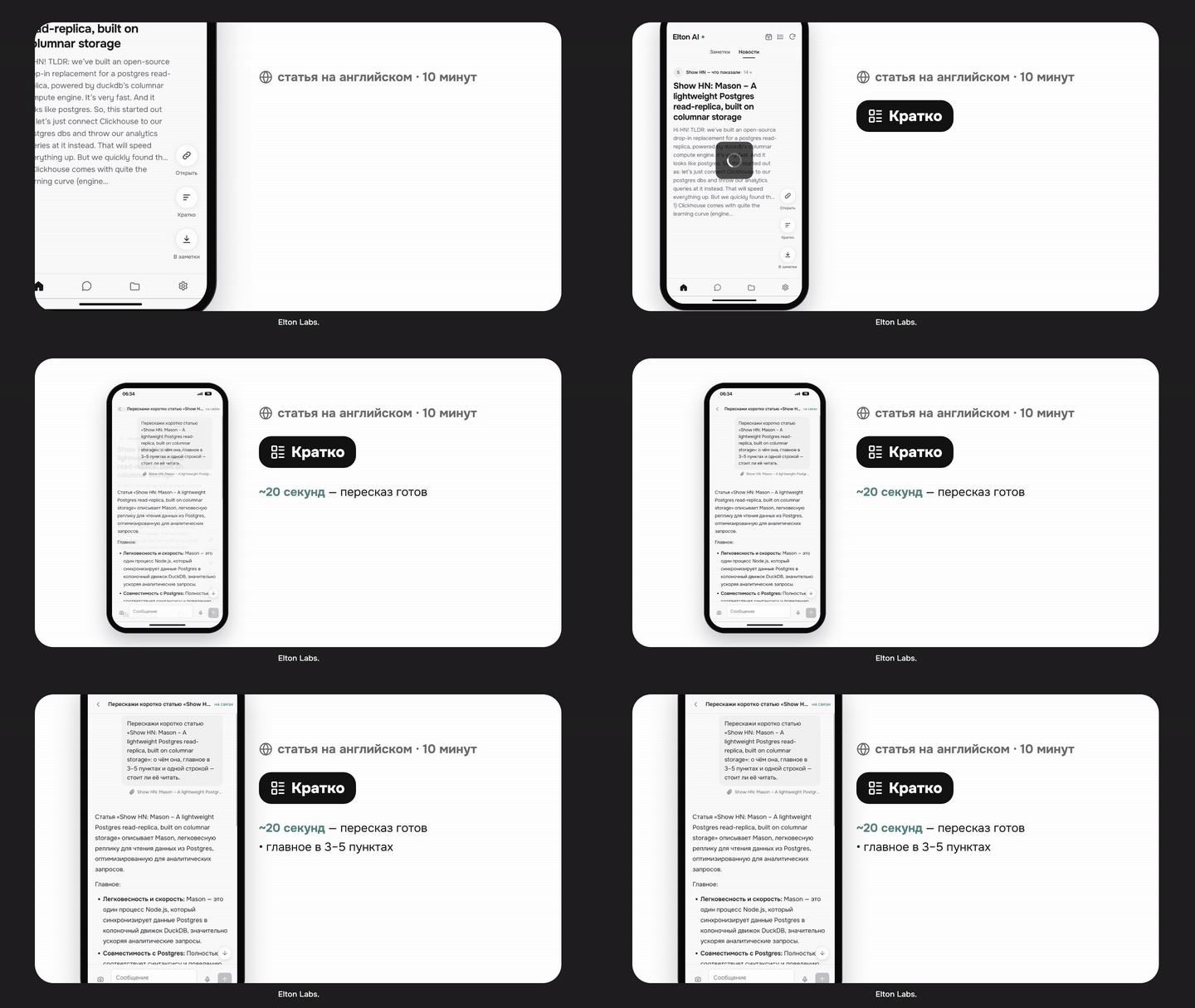
Came across a long article in English? I tap “Brief” — about twenty seconds later the assistant sends the main points in a few bullets plus one line: is it worth reading in full. Useful — “To notes”, and it’s already in Obsidian. Want to go deeper — “How to apply”.
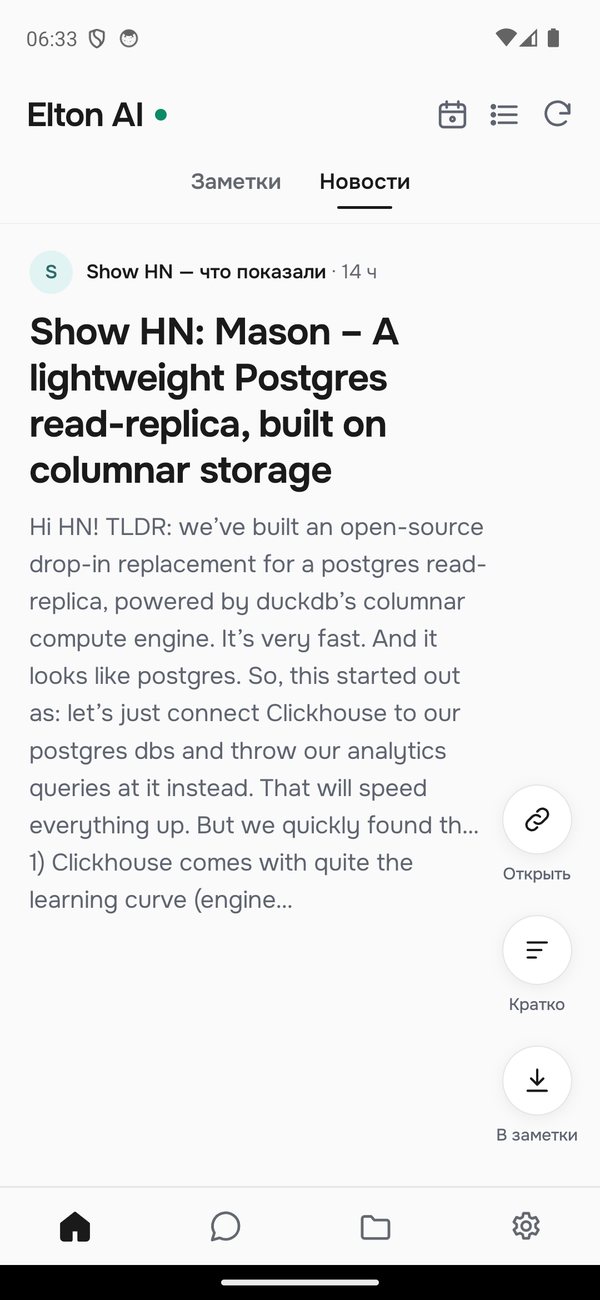
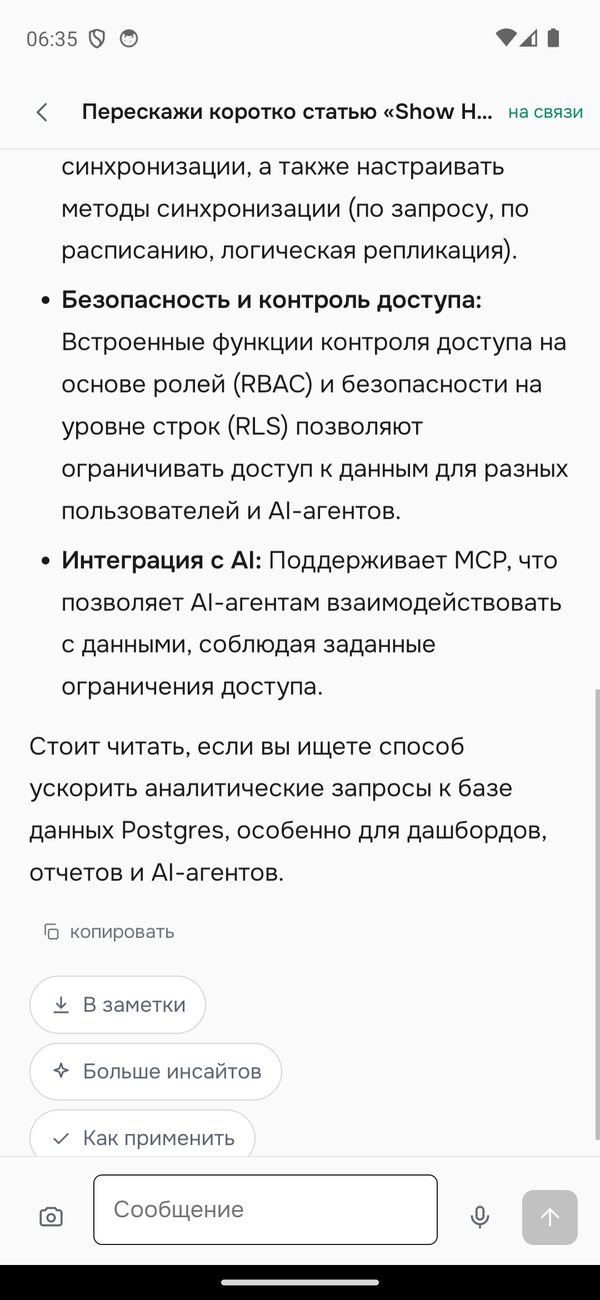
I scroll the same way I used to scroll TikTok. But afterwards I’m left with notes and ideas.
Installation and security
- Installs without an app store: open app.eltonlabs.org in Safari → Share → Add to Home Screen.
- Chats and notes are end-to-end encrypted — the server can’t see them. Every new device is approved on the computer.
- The Elton AI plugin is in the Obsidian community plugins catalog, and its code is open on GitHub — anyone can see how it works.
More: Elton AI app · Elton AI plugin for Obsidian.
Android, Xiaomi, Samsung and others
You can build all of this on Android too — there’s no built-in Shortcuts there, but there are automation apps.
| What | iPhone | Android (any) | Samsung |
|---|---|---|---|
| Finance menu button | Shortcuts → Choose from Menu | Tasker: a task with a List Dialog action → Launch App depending on the choice; task shortcut on the home screen | same in Tasker |
| ”Opened an app” automation | Automation → App | MacroDroid (free up to 5 macros) or Tasker: an Application profile | Modes and Routines (built in): “If app opened → …” |
| Quick thought into Obsidian | Get Contents of URL | free HTTP Shortcuts: POST to app.eltonlabs.org/api/send → widget | same |
| Repeating reminder | Reminders → Repeat | Google Tasks or Google Calendar → Repeat | same |
| Hide notification previews | Show Previews → Never | Settings → Notifications → On lock screen → Hide content | same |
| One screen without bright icons | Hide pages + tinted icons | a minimalist launcher (for example, Olauncher — free, open source) | same |
On Xiaomi, Honor, Huawei and other phones the settings names differ a little, but Tasker, MacroDroid and HTTP Shortcuts work the same everywhere.
Android: don't let the system kill your automation
On Xiaomi and other phones with aggressive battery saving, allow the automation app to run in the background: Settings → Apps → MacroDroid/Tasker → Battery saver → No restrictions. Otherwise the rules will fire every other time.
Where to start
You don’t have to repeat everything at once. Start with one thing:
- Remove the second page of your home screen.
- Build one menu button — for example, for banking apps.
- A week later open Screen Time and compare.
A boring smartphone is a phone that has stopped calling you on its own: only what matters on the lock screen, no bright icons on the home screen, small tasks leave your head with one tap, and the feed shows your own notes.
Write your screen time from yesterday in the comments under the video. Honestly — I’m really curious.